Make the deadline clear.
Enter the task, due date, priority and owner.
See the actual stepsFollow-up tasks and reminder rules
Turn 'remember to contact them' into work assigned to a person and a date.

No reminder rules currently exist. Only the original entry point was opened. No rule or in-app task was created, and no external reminder sent.
See this feature's highlights.
Enter the task, due date, priority and owner.
See the actual stepsPreview customers matched by reminder rules, then execute manually.
See the actual stepsComplete the task and record its conclusion so the next person has evidence to continue.
See how to checkTurn 'remember to contact them' into work assigned to a person and a date.
How the feature works. Actual results depend on information, permissions, and service requirements.
When to use it
When a follow-up needs a specific owner and date, turn the next contact into a task that can be completed.
description, due date, priority and owner.
reminder conditions and the customers matched in the preview.
Complete steps
Assign tasks, deadlines, priorities and owners, and record conclusions on completion. Preview customers matched by reminder rules, then manually run them to generate internal tasks. This does not mean external SMS is enabled.
Enter the task, due date, priority and owner.
Preview customers matched by reminder rules, then execute manually.
Complete the task and record its conclusion so the next person has evidence to continue.
Explore the real interface further
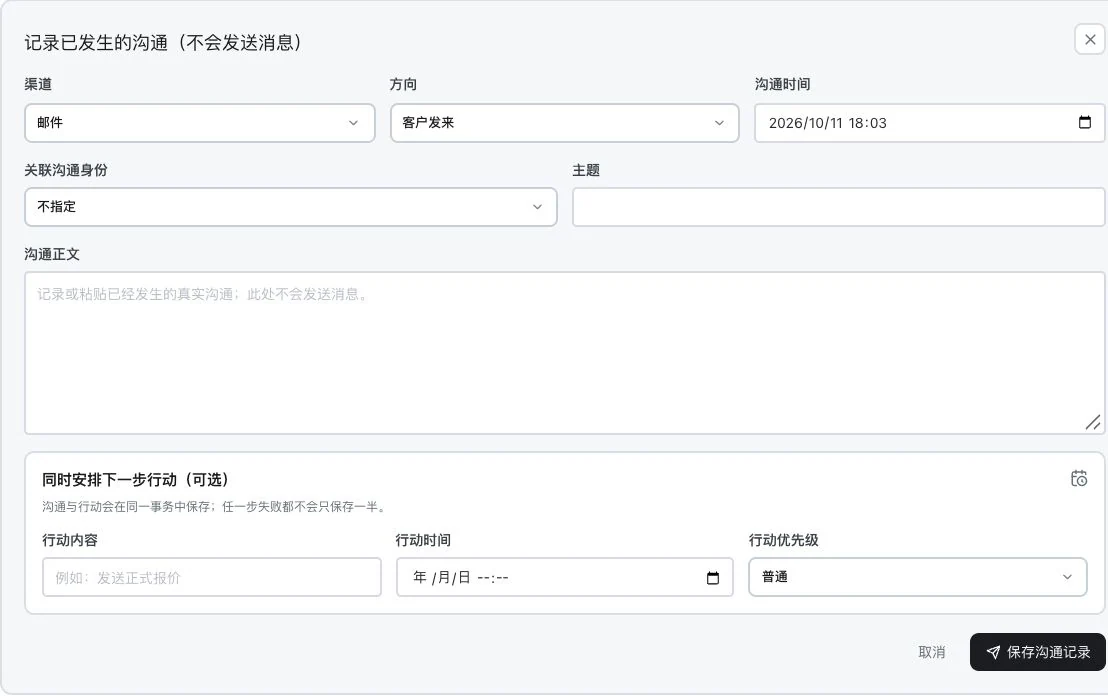
Subject, body, and actions are blank. No record saved or task created. This shows the original input entry only. It does not send messages and contains no AI analysis result.
Explain the feature through real work
Suppose you need to follow up on customer feedback after sending samples.
Hypothetical scenario · Feature explanation, not a customer case or completed AI resultUnderstand the tool and human handling separately
Turn 'remember to contact them' into work assigned to a person and a date.
Preview customers matched by reminder rules, then execute manually.
This compares feature handling scopes. Scenarios explain the sequence, not measured efficiency or completed customer cases.
Connect the work from step to step
Connect the task result back to customer communication and opportunities, rather than closing the task without a business record.
Return to Xunqi and CRM customer management for the complete workflowUnderstand before use
Reminder rules create in-app tasks. They do not mean external SMS or other notification channels are available.
Product facts and FAQsBack to the product feature directoryMore details in this product
Clear customer ownership and member roles help several people continue the same business.
Explore this feature on its own