From a market to a city to the companies you want to contact.
Full directory checked on 2026-10-12. Company information counts and timeliness are checked separately.
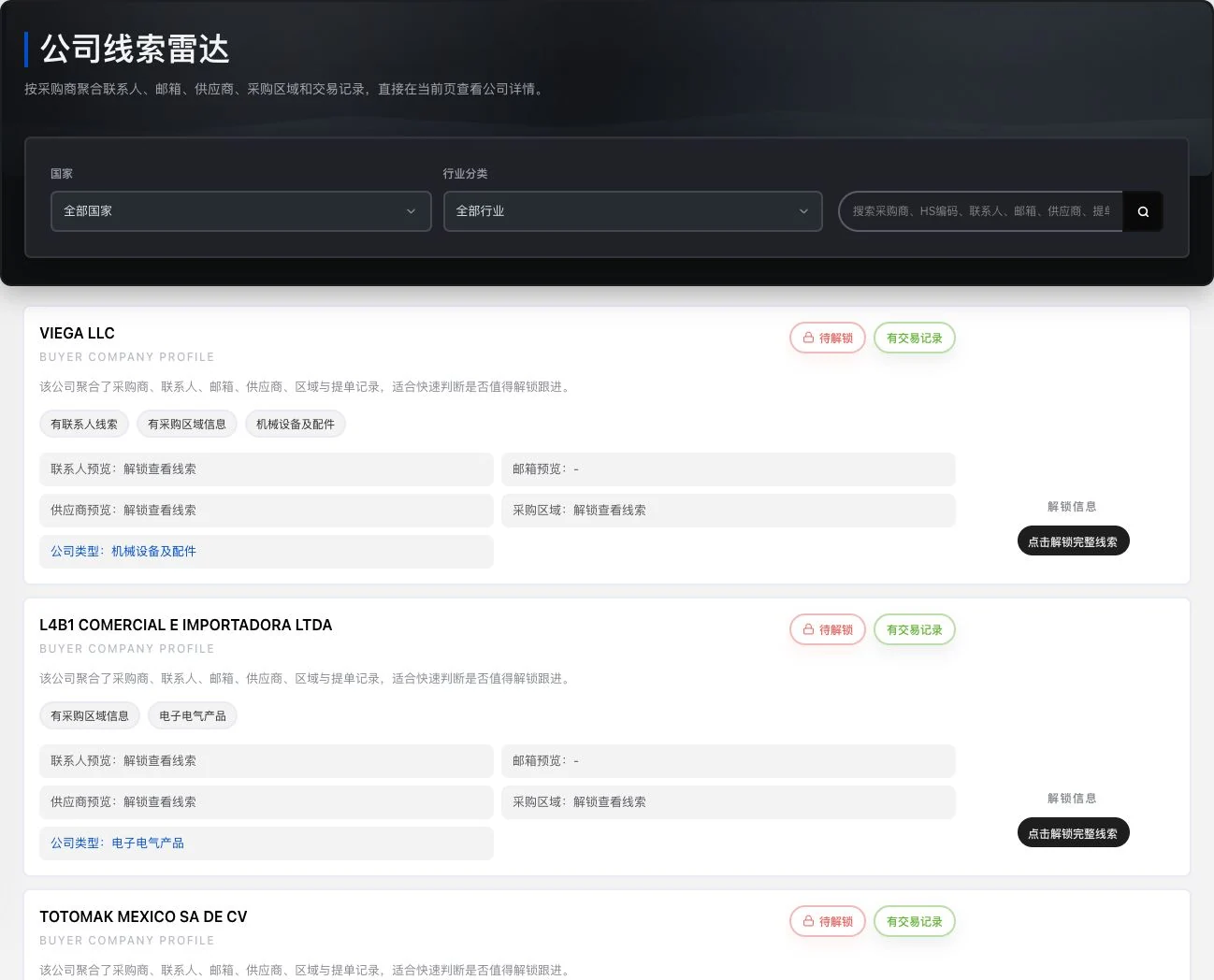
Company information filters and preview · Actual interface detail
Current company preview. Contacts, emails, and trade details still require unlocking. No unlock occurred. Existing-record labels do not prove current buying needs, customer relationships, or closed sales.
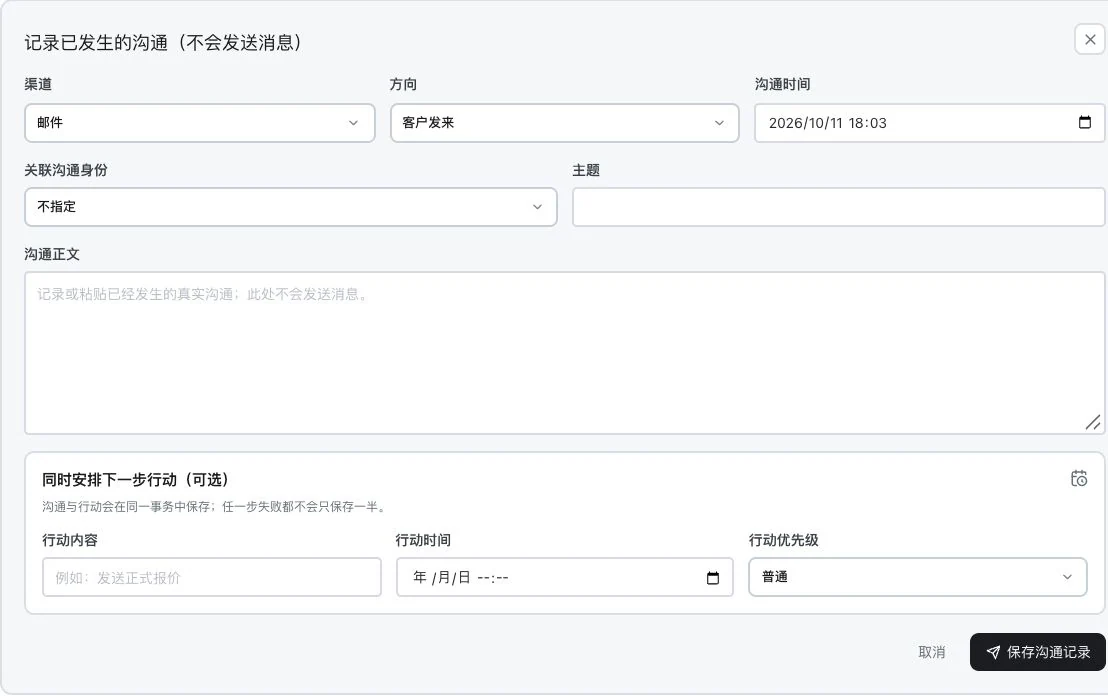
Record communication and next actions · Actual interface detail
Subject, body, and actions are blank. No record saved or task created. This shows the original input entry only. It does not send messages and contains no AI analysis result.
See these highlights
From a market to a specific customer.
Useful capabilities are found in each specific task.
01 / Explore more details
Choose the market first.
Narrow from country to city and industry.
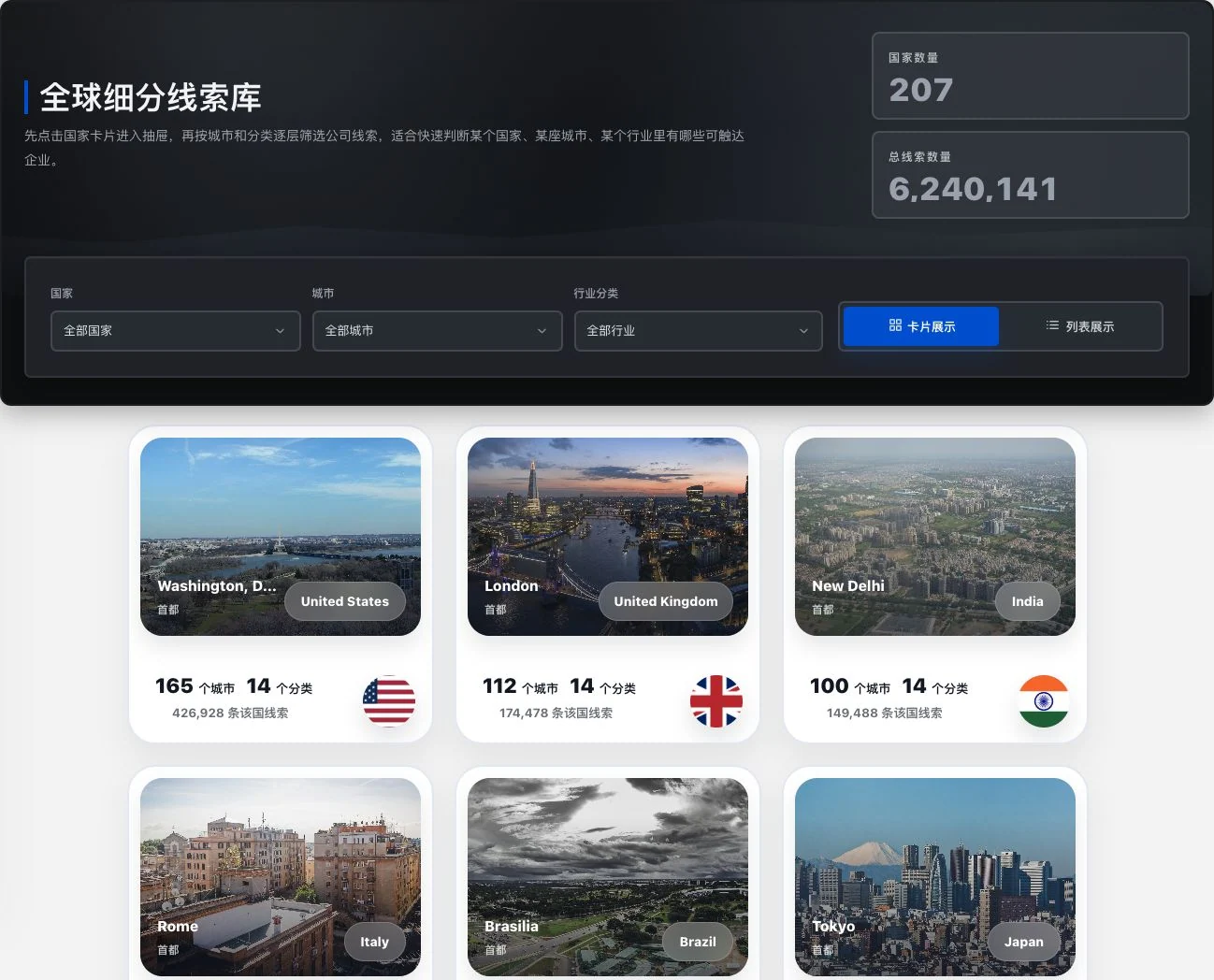
Country and city directory · Actual interface detail
Original current directory cards and statistics. 207 is the number of country entries, not evidence of company records in every country. Check data volume and freshness separately. No information unlocked.
Full-directory verification dated 2026-10-12. Check company-data volume and freshness separately for each region.
Features in concrete numbers
66types
Customer work queues
All active, needs attention, overdue, not contacted, no opportunity and no next step.
02 / Explore more details
See whom to contact.
Confirm the company, role and information source before contact.
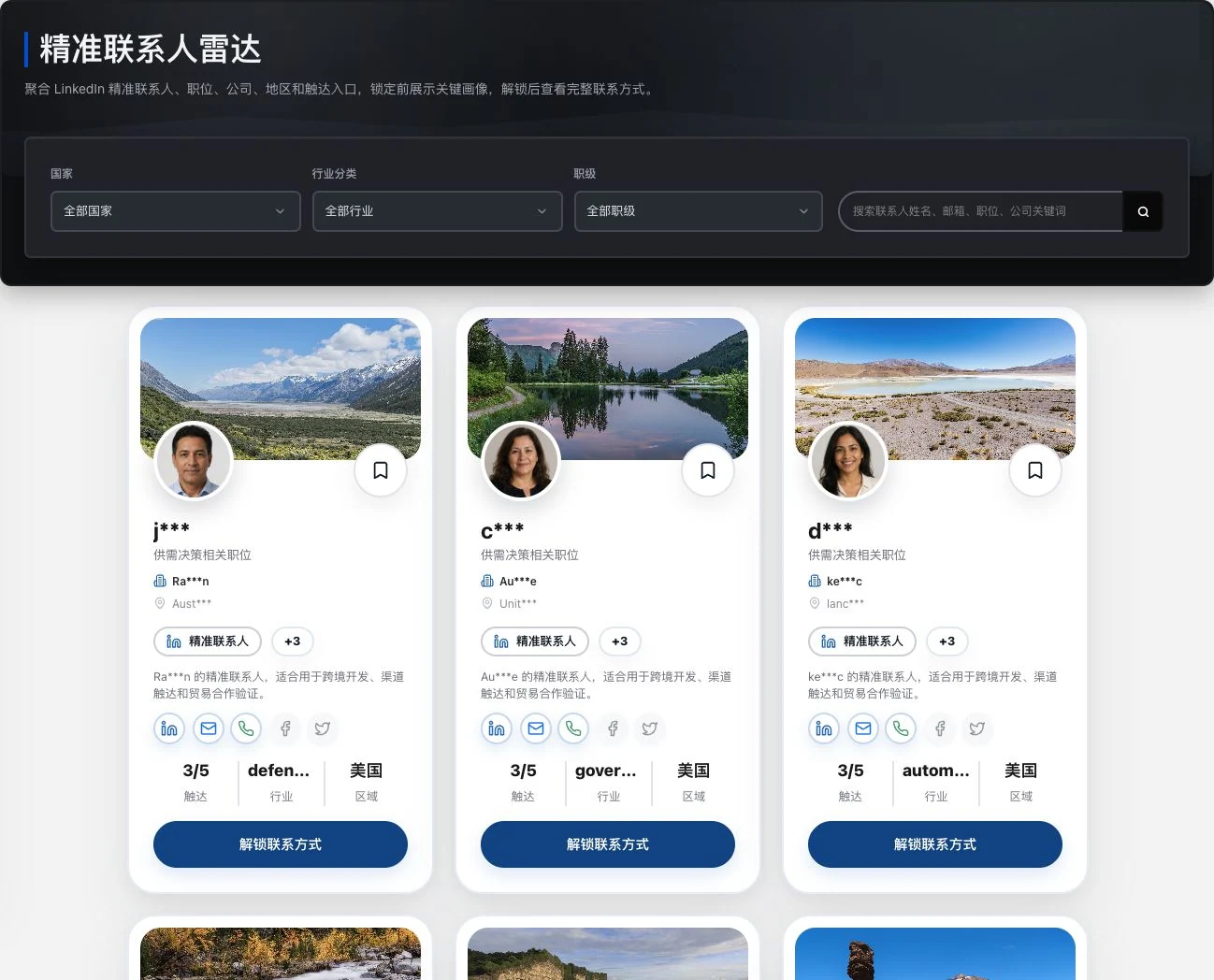
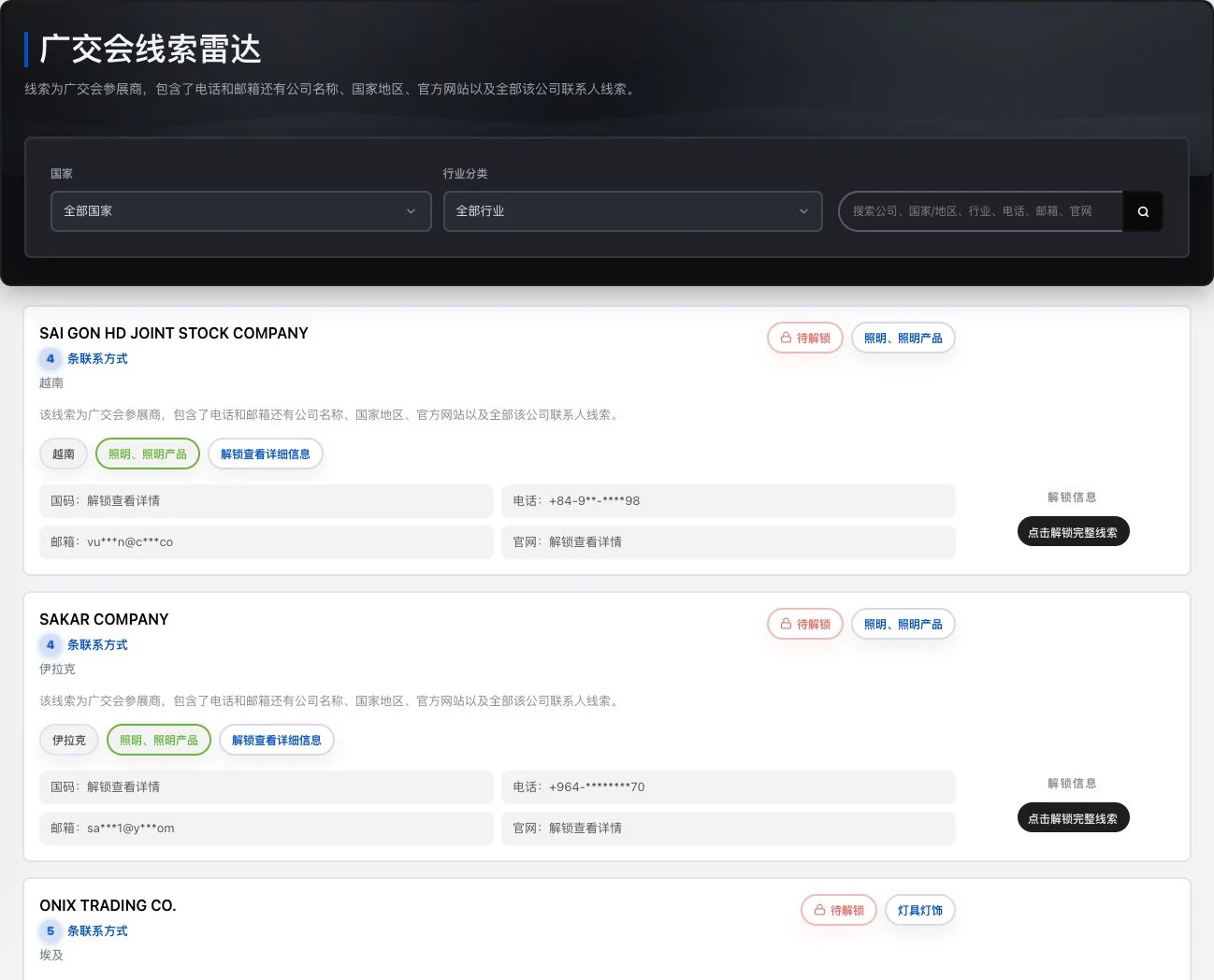
Company contact preview · Actual interface detail
Real locked preview with identity and contact fields retaining original masking. No favorite or unlock action occurred. Images and role labels do not prove buying authority, contact intent, or LinkedIn partnership.
Continue conversations and tasks around the same customer.
Record communication and next actions · Actual interface detail
Subject, body, and actions are blank. No record saved or task created. This shows the original input entry only. It does not send messages and contains no AI analysis result.
CSV, TSV and TXT entry limits. Confirm saving only after preview and review.
Numbers come from current feature definitions or real interfaces. Workflow numbers explain the presentation on this page; demonstration data is not a promise of efficiency or business results.View all features and conditions
CRM · Customer relationship management
From finding a customer. To keeping up with every follow-up.
CRM keeps customers, communication, opportunities and next steps in one place where work can continue. A new salesperson has less to ask again, and colleagues have fuller context during handovers.
66work pages
From overview to reports, centered on the same customer relationship.
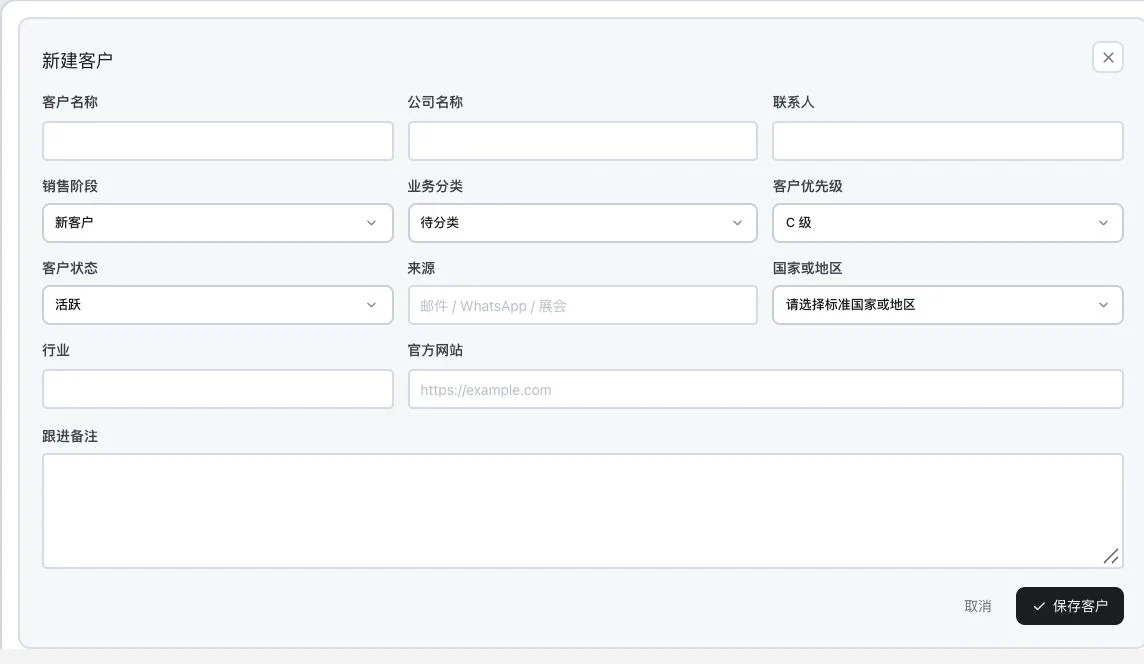
Create customer information · Real system screenshot
Original blank product form. No customer has been entered or saved. Fields and entry points are shown; no customer creation is implied.
01
Bring customer information together
Organize your own information or import received emails. Check the company, contact and source before creating a profile.
Workflow notes follow current features. Unlocking a lead does not automatically import it or send a message. Email and WhatsApp synchronization each require authorization and ready services. People must still confirm proposed information, opportunities and actions.
Salesperson records · Team reviews
Record it as you go. Understand it when you report.
Choose a cycle and dates to organize recorded work. Daily, weekly, monthly, quarterly and annual reports use actual customers, follow-up and opportunities.
Review recorded customer communication and follow-up.
02
How far it has progressed
Check opportunity stages, actual status and amount definitions separately.
03
What comes next
List tasks, owners and deadlines clearly.
4 export formatsPDF · Word · Excel · CSV
AI assists when available; otherwise, rules provide statistics. Results depend on recorded business, without invented missing content. Generation and export follow current permissions and service conditions.
Designed for everyday work
Every follow-up carries its context.
Find companies. From market to city.
Filter by country, city and industry, then check company and contact information.
Preview your information and keep the customer's words. After finding a company, put confirmed information into its record and arrange the next action.
Customer follow-up illustration
Information, communication, next steps. Connected.
EExample BuyerExample customer profile
Company informationCommunication recordsNext step
Save the original conversation
Asks about product specifications and the sample process.
Verify suggested items
Confirm specifications, then prepare information.
Schedule the next follow-up
Set an owner and deadline.
01Keep information in the profile
02Keep the original words as a reference
03Schedule the next follow-up
Fictional customer and workflow illustration. Confirm stages and tasks against actual progress. This illustration does not automatically save or update business records.
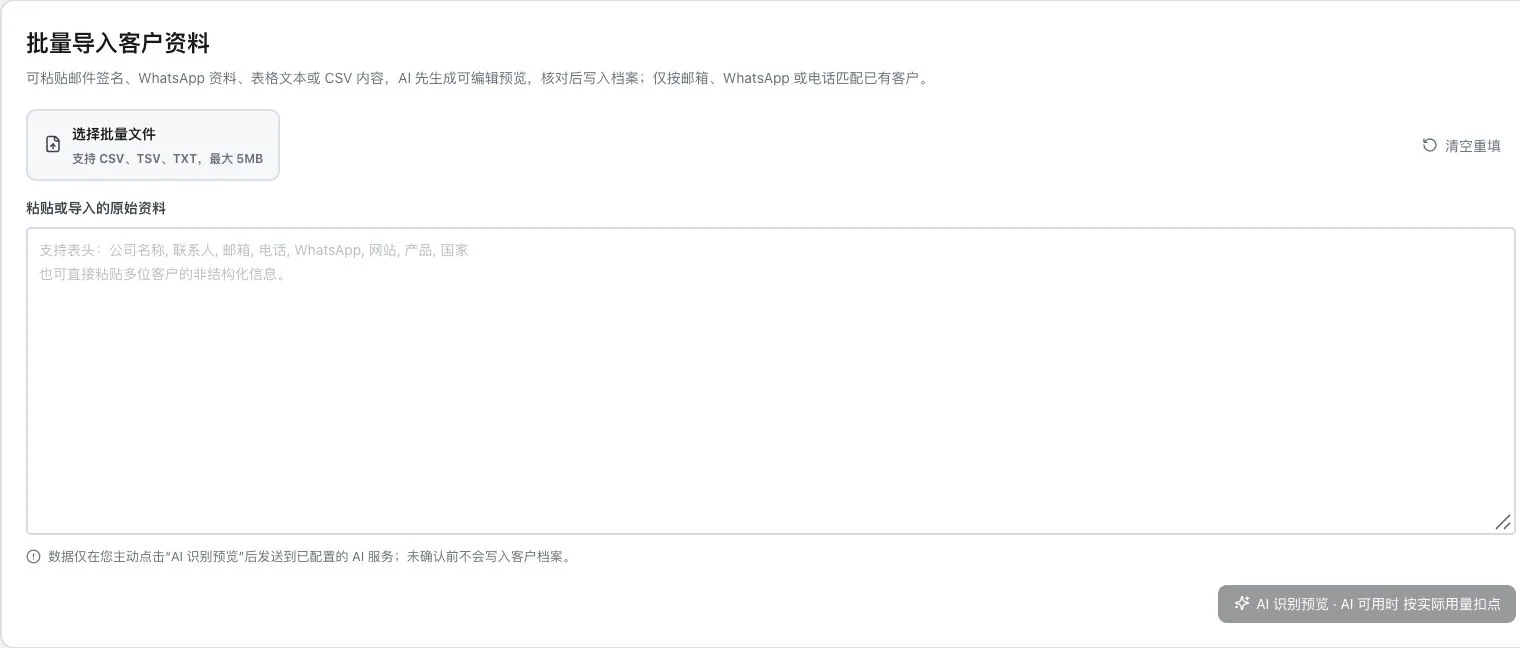
Customer information import entry · Real system screenshot
No pasted information, file selection, or AI recognition occurred. No preview was generated and no customer information saved. Formats and size are original entry conditions; actual import requires permission and service checks.
Create customer information · Real system screenshot
Original blank product form. No customer has been entered or saved. Fields and entry points are shown; no customer creation is implied.
Team and owners · Real system screenshot
The invite field is empty and only the demo primary account is present. No invitations, members, or customer assignments were executed. Permissions depend on actual team roles.
Clear daily records. Reports with a basis.
Daily, weekly, monthly, quarterly and yearly reports organize recorded customers, follow-ups and opportunities. Keep your attention on review and the next step. The same business records. Choose the period you need.
Counts come from the current sales-report feature. Results use recorded activity; generation and export depend on actual permissions and service conditions.
Company research and contact information
Start with a market.Find the person to verify.
View companies, contacts and numbers separately to build a candidate list with traceable sources.
Select a country, then narrow by city, business category or product conditions. When opening company information, consider its website, location and existing trade records in context to judge relevance to your product.
Roles, emails and WhatsApp numbers are leads for further research. Check companies and contact identities against sources, then save them, access details under the rules or continue with your own list. A number does not establish consent to contact.
Company contact preview · Real system screenshot
Real locked preview with identity and contact fields retaining original masking. No favorite or unlock action occurred. Images and role labels do not prove buying authority, contact intent, or LinkedIn partnership.
01
Narrow the market
Organize candidates by country, city and category, distinguishing directory entries from regions with actual records.
02
Verify identity
Compare companies, roles, sources and contact details to establish whom to contact this time.
03
Keep a list
Save companies and contacts for later or manage your own imported information.
Stop here
Save only a company name, and next time you must find its source again.
Continue this way
Continue checking the company, contact, source and your research list along the same line.
Workflow example. Confirm regional data volumes, freshness and the basis for contact from actual records.
Customer records and team follow-up
Record this time.Plan the next.
The customer's words, opportunities and owners form a work record others can continue.
Record actual conversations first, then ask AI to suggest customer information, opportunities or actions. Edit proposed values individually; only confirmed information is saved. Record inquiry amounts separately from completed sales.
Review conversations on the customer timeline. Use work queues to find uncontacted, overdue or next-step-free customers. Specify deadlines, priorities and owners, then record completion conclusions so colleagues can take over with context.
Record communication and next actions · Real system screenshot
Subject, body, and actions are blank. No record saved or task created. This shows the original input entry only. It does not send messages and contains no AI analysis result.
01
Keep the original words first
Match conversation sources, dates and customer identities to records. Continue filling information gaps.
02
Confirm suggestions individually
Edit proposed information, opportunity stages and next steps. Save only after confirmation.
03
Assign actions to people
Make tasks, deadlines and owners clear. Record actual results for completed tasks.
Stop here
"The customer is interested" stays in chat without clear requirements or an owner.
Continue this way
Keep the customer's words in the timeline. Confirm needs, opportunities and next steps separately, then assign them to a person.
A follow-up example written by people, not a sales case or conversion-rate evaluation.
Use case · Sales handover and manager review
Turn a follow-upinto progress the team can continue.
Customers do not depend on one person's memory. Processes, owners and periodic reports give the team shared context.
For example, a customer asks about custom packaging. Record their words, confirm sample requirements and assign the next task to an owner. A manager reviews the timeline to assess the opportunity stage. A colleague reads previous records before continuing contact.
On Friday, select this week and the relevant dates to organize customers with new records, conversations, tasks or opportunity events. Daily through yearly reports use recorded activity, total amounts by currency and retain generation-time snapshots. Reports support review without treating inquiries as sales.
Team and owners · Real system screenshot
The invite field is empty and only the demo primary account is present. No invitations, members, or customer assignments were executed. Permissions depend on actual team roles.
01
Record facts as you work
Record what the customer said, what was done and what comes next separately.
02
Hand over with context
Check owners, permissions and deadlines, then record actual completion results.
03
Summarize progress within the period
Choose a period and dates to generate reports. Check statuses, customer scope, currencies and definitions before exporting.
Stop here
Reread chats before reporting and ask again what happened during handover.
Continue this way
Return daily records to customer files. Colleagues continue from existing context, and periodic reports begin with records.
A team scenario written by people. It illustrates less repeated searching; no hours saved have been measured or promised.
Compare to see clearly
The same customer.Continue with the full context.
The following illustrates workflows, not conversion-rate or time-saving tests.
What you provide, what the software helps organize and what needs confirmation next.
The task
You provide
The software helps organize
You confirm
Find companies
Country, city, industry and existing information
Candidate companies filtered by conditions
Sources, freshness and actual business identities
Keep records
Completed conversations and customer information
Customer records, original words and next steps
Facts, owners and follow-up dates
Import information
Your own tables or pasted content
Editable row-by-row preview
Fields and duplicates, then confirmed import
Explore every feature
Every tool. A specific purpose.
21 features, with body text directly visible. Read real interfaces alongside process notes, or open individual feature pages for more detailed inputs, outputs and examples.
01
Filter company information
Implemented; configuration required
LDG-001
Find companies worth a closer look.
Connect company discovery with information checks so the customer list has clear sources.
Find companies by market, product and available fields, then view contacts, emails, supply-chain information and existing trade records. Data volume, regional coverage and freshness depend on the current database.
How to continue
01
Select the market, product and currently available filters.
02
Open company information and check existing contacts, emails and trade records.
03
Keep companies that need further research for the next step.
Use and review
Check information sources, update dates and the basis for contact item by item. Existing records do not establish current purchasing needs.
Company information filters and preview · Real system screenshot
Current company preview. Contacts, emails, and trade details still require unlocking. No unlock occurred. Existing-record labels do not prove current buying needs, customer relationships, or closed sales.
Understand who works at the company before deciding whom to approach about this business.
View contact roles, companies, regions and existing contact details to decide whom to check next. LinkedIn fields do not imply official partnership, purchasing authority or willingness to be contacted.
How to continue
01
Review the contact's company, role and location.
02
Confirm identity against existing contact details and company information.
03
Identify contacts for further verification, then prepare to communicate.
Use and review
Role and LinkedIn fields are information clues only. They do not establish purchasing authority or willingness to be contacted.
Company contact preview · Real system screenshot
Real locked preview with identity and contact fields retaining original masking. No favorite or unlock action occurred. Images and role labels do not prove buying authority, contact intent, or LinkedIn partnership.
Turn a broad market idea into a search scope you can verify company by company.
Select a country, narrow by city and category, and view websites, addresses and existing contact details. A selectable directory does not mean company records exist for every region.
How to continue
01
Choose a country or region and review available cities and categories.
02
Narrow the filters step by step and view existing company information.
03
Check targets against websites, addresses and contact details.
Country and city directory · Real system screenshot
Original current directory cards and statistics. 207 is the number of country entries, not evidence of company records in every country. Check data volume and freshness separately. No information unlocked.
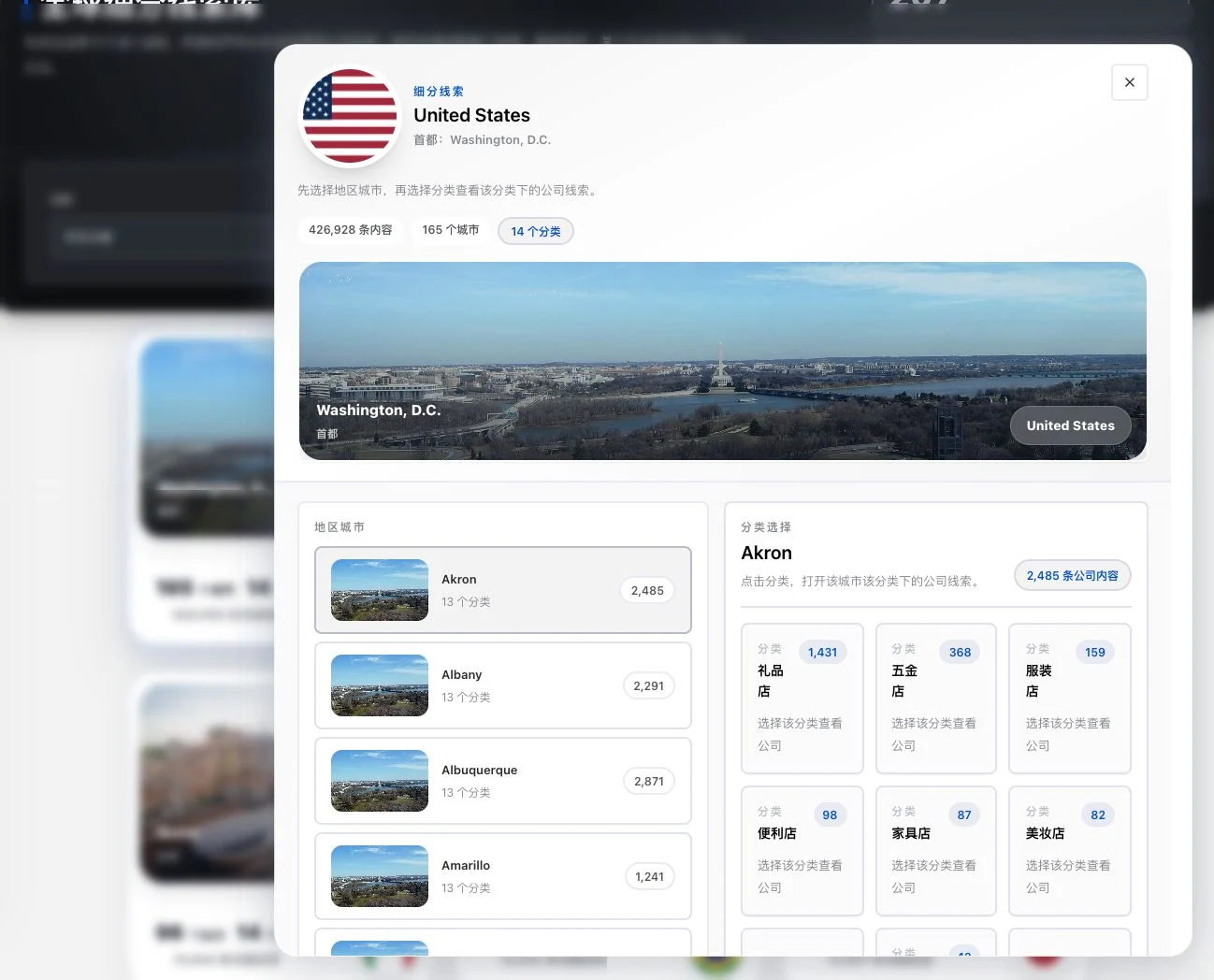
City and industry segmentation · Real system screenshot
Only the original country drawer and city selection were used. Categories and counts come from the current database. Full contact information was not viewed or unlocked. Category counts do not establish currently reachable businesses or buying needs.
Use and review
Available regions and categories are directory links, not a guarantee of records in every location.
After the trade show, keep the information working.
Return to company information in its trade show context to prepare evidence for follow-up organization and contact.
Search imported information for Canton Fair and other exhibition companies, and view existing contact records under unlocking rules. This does not imply official exhibition authorization or current participation.
Trade-show company information preview · Real system screenshot
Loaded original-database company preview. Phone, email, and details remain masked and locked. The directory name does not establish official trade-show authorization or a current exhibitor relationship.
How to continue
01
Open the imported exhibitor company directory.
02
Find relevant companies using current filters and check existing exhibitor information.
03
View records under actual unlock rules and arrange further verification.
Use and review
Information does not imply official trade show authorization, current exhibitor relationships or consent to contact.
Find contact details and understand why they appear here.
View existing information in email and WhatsApp-number panels. Emails can link to exhibition, contact and regional sources. Users verify phone reachability, sources and the basis for contact.
How to continue
01
Select the email or WhatsApp number lead panel.
02
Review the trade show, contact or location source associated with the record.
03
Check reachability and the basis for contact before adding it to your own list.
Use and review
Users must confirm availability, whether the details belong to the target company and the basis for contact.
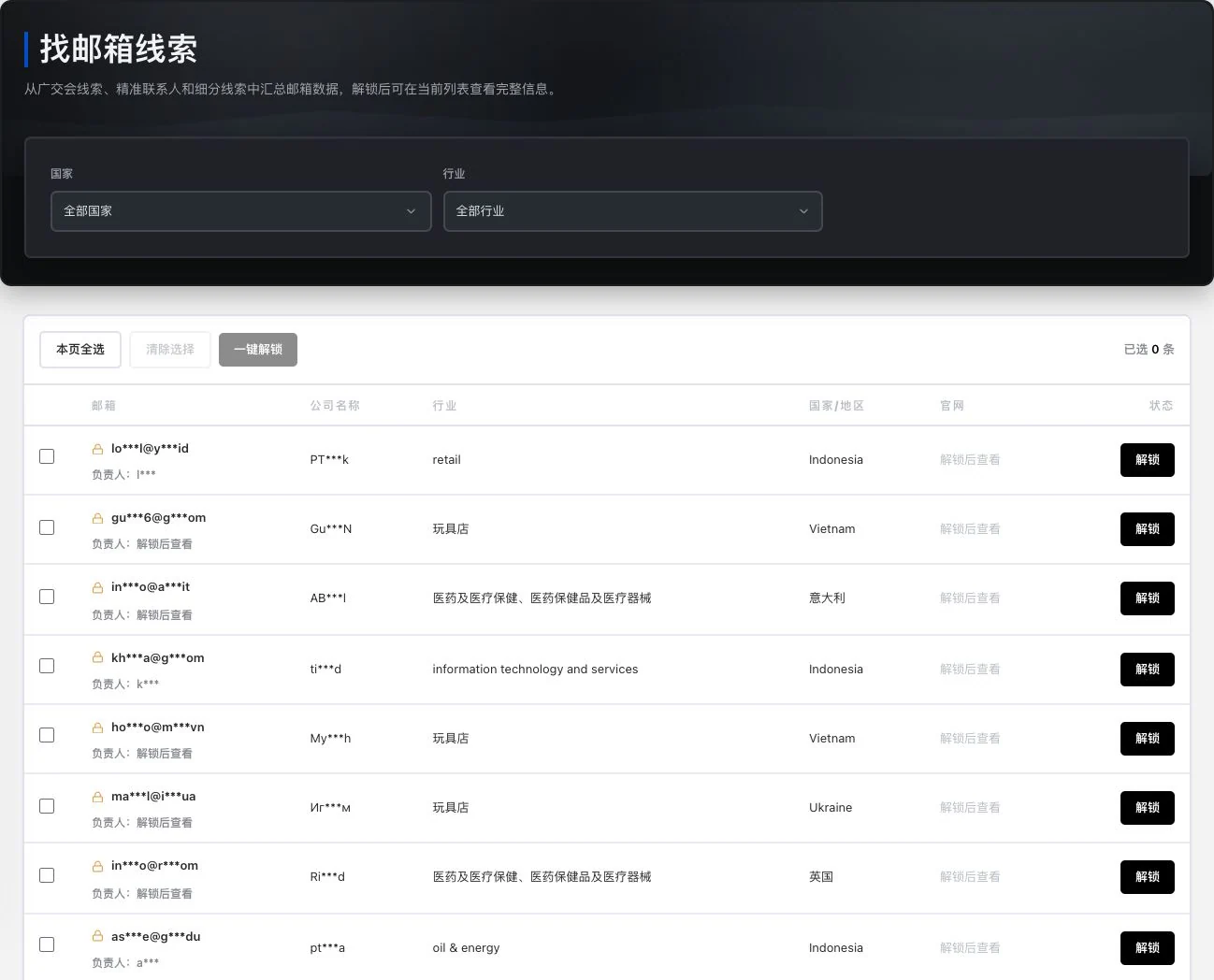
Email information preview and selection · Real system screenshot
Real locked list with 0 selected records. No bulk unlock or email sending occurred. Public or unlockable information does not confer advertising-contact permission.
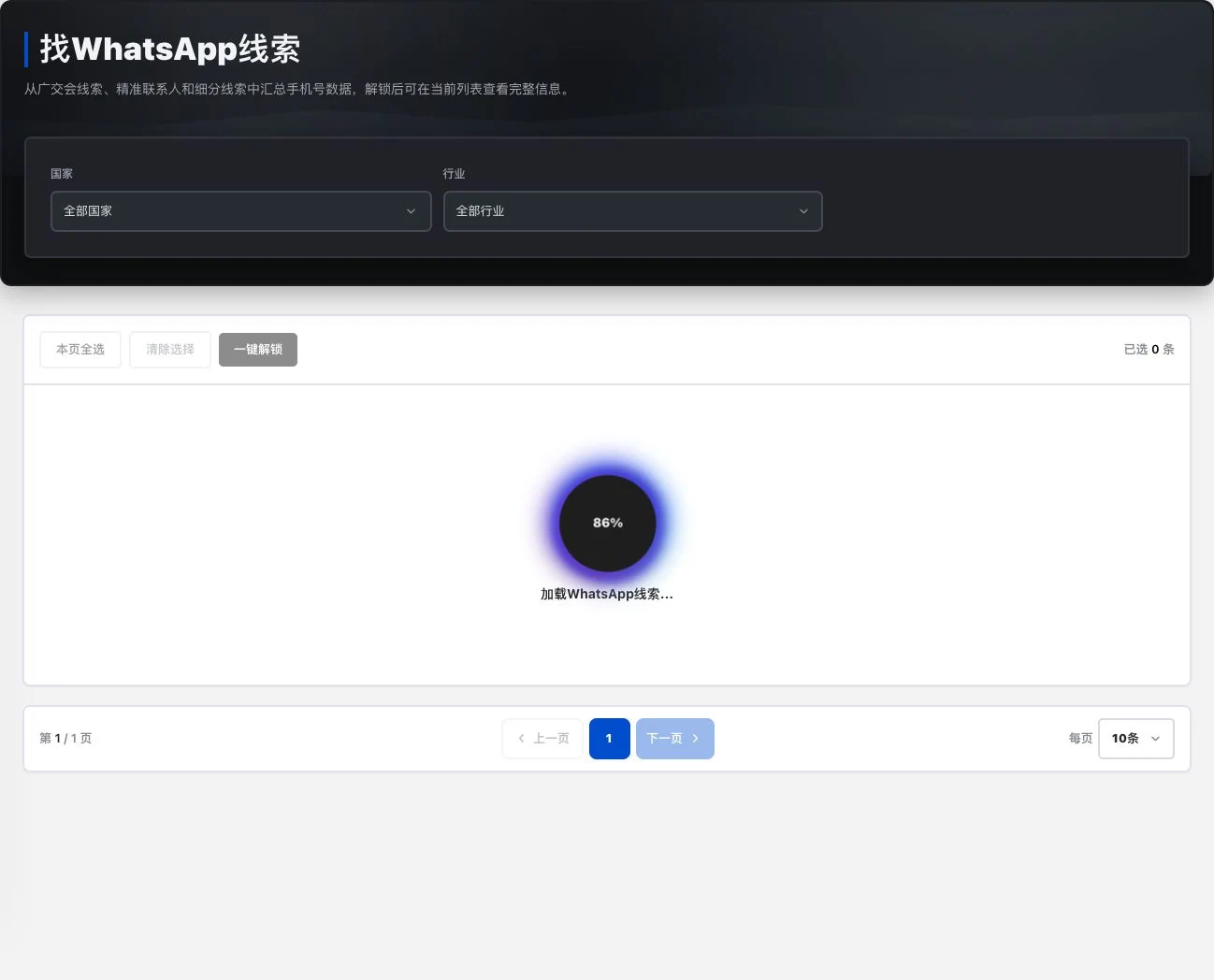
WhatsApp number lead entry · Real system screenshot
The list was still loading at 86% during capture. No entries selected, information unlocked, or WhatsApp connection made. Loaded numbers, reachability, or contact permission are not established.
Use communities, cargo listings and historical trade records as research starting points, then assess business relevance.
Find WeChat groups by industry and region and view sources and available QR codes. Also view cargo listings and company trade records. Check group information; historical records are not current inquiries.
How to continue
01
Search current community information by industry and region.
02
Review existing QR codes, cargo listings or company trade records.
03
Return to the source to confirm status and choose entries for further research.
Use and review
Community status can change. Past records are not current inquiries or promises of available stock.
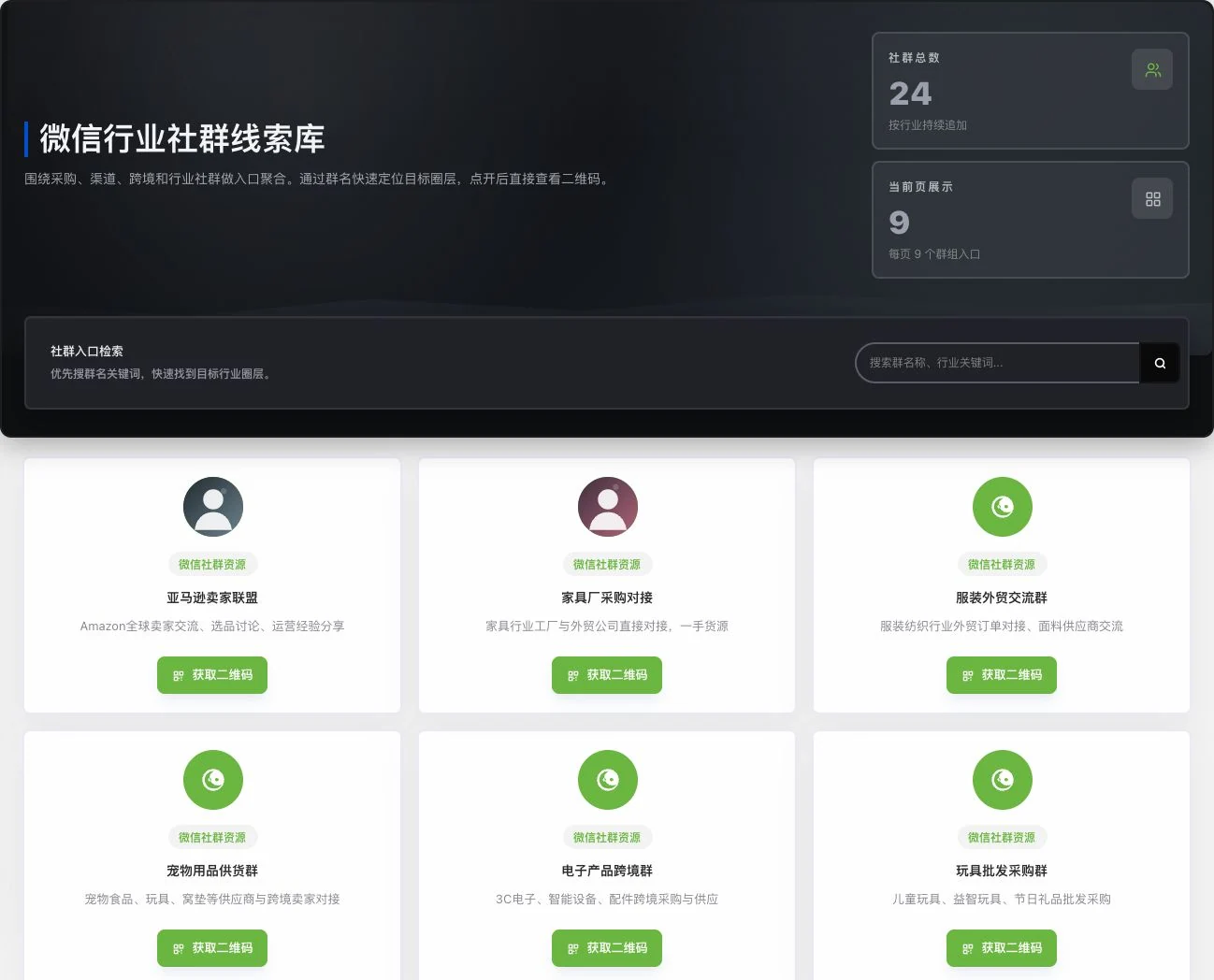
Industry-community directory · Real system screenshot
Only the original community directory was viewed. No QR code obtained, community joined, or member contacted. Entries do not prove institutional partnerships, current member counts, or available buying needs.
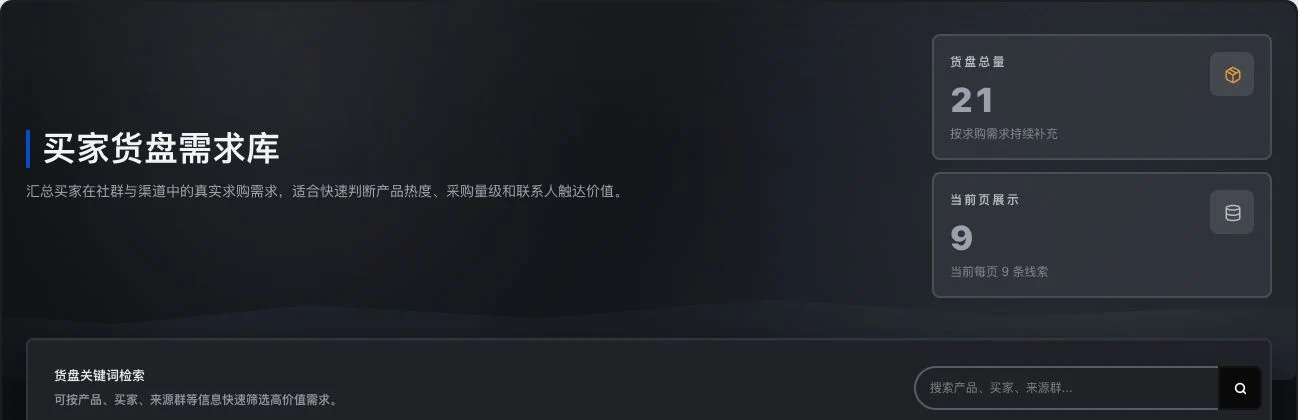
Cargo-listing filter entry · Real system screenshot
Only the filter header remains. No contacts shown, search executed, or information unlocked. Entry counts do not equal new inquiries, valid buying needs, or customer-confirmed transactions.
Keep temporary discoveries so your next search has a starting point.
Save companies and contacts for later, or download a template, import your own lead list and manage records. Your own lead-list import and customer-record preview import are separate features.
How to continue
01
Save companies or contacts that need further checking.
02
To import your own leads, download the corresponding template and organize its fields first.
03
Review imported records and continue managing your own list.
Company contact preview · Real system screenshot
Real locked preview with identity and contact fields retaining original masking. No favorite or unlock action occurred. Images and role labels do not prove buying authority, contact intent, or LinkedIn partnership.
Use and review
Lead-list import and customer-profile preview import use different tools. Information still needs checking.
Keep a clear scope and usage record for information access.
View individual or batch information under account rules and check lead-credit records. Dual-wallet release migration and actual entitlements still require validation.
Company contact preview · Real system screenshot
Real locked preview with identity and contact fields retaining original masking. No favorite or unlock action occurred. Images and role labels do not prove buying authority, contact intent, or LinkedIn partnership.
Company information filters and preview · Real system screenshot
Current company preview. Contacts, emails, and trade details still require unlocking. No unlock occurred. Existing-record labels do not prove current buying needs, customer relationships, or closed sales.
Trade-show company information preview · Real system screenshot
Loaded original-database company preview. Phone, email, and details remain masked and locked. The directory name does not establish official trade-show authorization or a current exhibitor relationship.
Email information preview and selection · Real system screenshot
Real locked list with 0 selected records. No bulk unlock or email sending occurred. Public or unlockable information does not confer advertising-contact permission.
WhatsApp number lead entry · Real system screenshot
The list was still loading at 86% during capture. No entries selected, information unlocked, or WhatsApp connection made. Loaded numbers, reachability, or contact permission are not established.
How to continue
01
Confirm whether you are viewing one record or a batch.
02
Check account benefits and required lead credits.
03
View records under actual access rules and review usage afterward.
Use and review
This item awaits operational acceptance. Dual-wallet migration, settlement and final benefits cannot be promised directly from the directory.
Build the day's schedule on recorded business and reduce context switching.
View saved customers, opportunities, tasks, regional distribution and work patterns to plan the day. Charts use current records and do not infer unrecorded offline activity.
How to continue
01
Review the current state of saved customers, opportunities and tasks.
02
Use regional distribution and work patterns to identify what needs attention.
03
Open the relevant customer or task to handle today's work.
Use and review
Charts use current system records. They exclude unrecorded offline business and do not predict sales.
Workflow illustration · Not a system screenshot
01
Review the current state of saved customers, opportunities and tasks.
02
Use regional distribution and work patterns to identify what needs attention.
03
Open the relevant customer or task to handle today's work.
This feature retains instructions and usage conditions but does not yet show actual business results.
Keep company, contact identity and owner together so a handover is easier to understand.
Save companies, contacts, emails, phone numbers, tags, owners and customer company details. Record 7 stages from new customer to sale. A WeChat ID field does not provide chat integration.
How to continue
01
Record company, contact, contact details, tags and owner.
02
Add customer company information and adjust stages to real progress.
03
Continue reviewing communication, opportunities and next steps from the same profile.
Use and review
Users verify customer identity, contact details and stage. The WeChat ID field is not a WeChat chat integration.
Create customer information · Real system screenshot
Original blank product form. No customer has been entered or saved. Fields and entry points are shown; no customer creation is implied.
Where did the conversation stop? Look back in time.
Connect individual records to the same customer to recover the context of the previous conversation.
Review recorded or synchronized conversations and business actions chronologically. Customer details contain 4 areas: timeline, opportunities, next actions and customer information, helping the work continue.
How to continue
01
Open the timeline in customer details.
02
Review recorded or synchronized communication and actions by event time.
03
Continue using opportunities, next actions and customer information together.
Workflow illustration · Not a system screenshot
01
Open the timeline in customer details.
02
Review recorded or synchronized communication and actions by event time.
03
Continue using opportunities, next actions and customer information together.
This feature retains instructions and usage conditions but does not yet show actual business results.
Use and review
The timeline displays saved or synchronized content only. It does not mean all offline communication has been recorded.
Prepare the next action from a conversation while keeping a place for human review.
Save the customer's words, then ask AI to suggest customer updates, opportunities and next steps. Edit suggestions individually and choose what to save. Manual conversation records do not send messages, and inquiries are not counted as sales.
Record communication and next actions · Real system screenshot
Subject, body, and actions are blank. No record saved or task created. This shows the original input entry only. It does not send messages and contains no AI analysis result.
How to continue
01
Save the actual conversation and preserve its original wording.
02
Review AI-proposed customer information, opportunities and actions.
03
Edit against source excerpts and select the sections to confirm and update.
Use and review
An available model and corresponding benefits are required. AI suggestions are not sales facts, and manual records do not send messages on your behalf.
Turn the customer list into specific work to continue.
Find work in 6 queues: all active, needs attention, overdue, not contacted, no opportunity and no next step. View individual customers or batch analysis tasks. Review AI suggestions; they do not establish buying intent.
How to continue
01
Choose queues such as overdue, not contacted, no opportunity or no next step.
02
Review the corresponding customers and recorded business to prioritize handling.
03
When analysis is needed, review customer or batch tasks and check the suggestions.
Use and review
Queue conditions come from system records. AI analysis requires a ready service and does not establish purchasing intent or a risk conclusion.
Workflow illustration · Not a system screenshot
01
Choose queues such as overdue, not contacted, no opportunity or no next step.
02
Review the corresponding customers and recorded business to prioritize handling.
03
When analysis is needed, review customer or batch tasks and check the suggestions.
This feature retains instructions and usage conditions but does not yet show actual business results.
Separate ongoing inquiries from confirmed sales to keep managing progress.
Move through 4 active stages: need discovery, qualification, proposed quotation and negotiation. Keep events and confirm won, lost or archived outcomes. Quoted amounts are counted separately from sales.
How to continue
01
Create an opportunity linked to a customer and specific product.
02
Record genuine progress through needs, qualification, quotation and negotiation.
03
Confirm a won, lost or archived outcome and retain the reason.
Use and review
An opportunity amount is a record for that stage only. A sale must be explicitly confirmed from actual business.
Workflow illustration · Not a system screenshot
01
Create an opportunity linked to a customer and specific product.
02
Record genuine progress through needs, qualification, quotation and negotiation.
03
Confirm a won, lost or archived outcome and retain the reason.
This feature retains instructions and usage conditions but does not yet show actual business results.
Turn 'remember to contact them' into work assigned to a person and a date.
Assign tasks, deadlines, priorities and owners, and record conclusions on completion. Preview customers matched by reminder rules, then manually run them to generate internal tasks. This does not mean external SMS is enabled.
How to continue
01
Enter the task, due date, priority and owner.
02
Preview customers matched by reminder rules, then execute manually.
03
Complete the task and record its conclusion so the next person has evidence to continue.
Reminder-rule entry point · Real system screenshot
No reminder rules currently exist. Only the original entry point was opened. No rule or in-app task was created, and no external reminder sent.
Record communication and next actions · Real system screenshot
Subject, body, and actions are blank. No record saved or task created. This shows the original input entry only. It does not send messages and contains no AI analysis result.
Use and review
Reminder rules create in-app tasks. They do not mean external SMS or other notification channels are available.
Who takes over? Arrange information and responsibility together.
Clear customer ownership and member roles help several people continue the same business.
Invite members, accept or decline invitations, revoke invitations or leave. Assign customers to owners. Current team roles control what salespeople and managers can see and do.
Team and owners · Real system screenshot
The invite field is empty and only the demo primary account is present. No invitations, members, or customer assignments were executed. Permissions depend on actual team roles.
How to continue
01
Invite members to accept or decline.
02
Assign customers and owners according to actual team roles.
03
Revoke, leave or reassign when an adjustment is needed.
Use and review
Visibility and operation permissions follow current role controls. Invitations do not automatically grant access to every customer.
Separate information preparation from final entry to leave room for checks and edits.
Paste information or select CSV, TSV or TXT files. Preview and edit first, then confirm import. Files are limited to 5 MB. Rules parse tables; AI recognition of unstructured information requires a ready service.
How to continue
01
Paste customer information or select a CSV, TSV or TXT file.
02
Review the row-by-row preview and edit company and contact fields.
03
Confirm import after checking, then review the customer profiles.
Use and review
Maximum file size is 5 MB. Tables support rule-based parsing; AI recognition of unstructured information requires ready services and benefits.
Customer information import entry · Real system screenshot
No pasted information, file selection, or AI recognition occurred. No preview was generated and no customer information saved. Formats and size are original entry conditions; actual import requires permission and service checks.
Looks like the same customer? Compare before merging.
Keep the comparison process before removing duplicates to reduce the risk of losing business context prematurely.
Compare differences between possible duplicates and confirm the target before merging linked records. Uncertain customer matches are not merged automatically.
How to continue
01
Review suspected duplicate customers and field differences.
02
Check both profiles and associated business, then choose the destination profile.
03
Confirm the merge and check that associated records were retained.
Use and review
Uncertain customers must not be merged automatically. A person must confirm the merge destination and differences.
Workflow illustration · Not a system screenshot
01
Review suspected duplicate customers and field differences.
02
Check both profiles and associated business, then choose the destination profile.
03
Confirm the merge and check that associated records were retained.
This feature retains instructions and usage conditions but does not yet show actual business results.
Common transaction details. Ready for the next document.
Maintain common company headings, contacts and transaction information for future documents.
Save your company, customer company and default transaction fields for later quotations and documents, reducing repeated entry. Confirm amounts, payment and shipping conditions for every new transaction.
How to continue
01
Complete document information for your company and customer companies.
02
Save common transaction fields and prepare customer defaults.
03
Fill blank quotation or document fields with these details, then check the current transaction.
Workflow illustration · Not a system screenshot
01
Complete document information for your company and customer companies.
02
Save common transaction fields and prepare customer defaults.
03
Fill blank quotation or document fields with these details, then check the current transaction.
This feature retains instructions and usage conditions but does not yet show actual business results.
Use and review
New amounts, payment terms and shipping terms still need confirmation. Defaults do not replace the current agreement.
The work you have done. In a report you can share.
Turn saved work into report material suited to reading and handover.
Organize recorded activity across 5 periods: daily, weekly, monthly, quarterly and yearly. Export in 4 formats: PDF, Word, Excel or CSV. Check reporting definitions; reports do not replace a company audit.
Workflow illustration · Not a system screenshot
01
Choose a daily, weekly, monthly, quarterly or annual period.
02
Review recorded business and report definitions, adding any context that needs explanation.
03
Export PDF, Word, Excel or CSV according to the purpose.
This feature retains instructions and usage conditions but does not yet show actual business results.
How to continue
01
Choose a daily, weekly, monthly, quarterly or annual period.
02
Review recorded business and report definitions, adding any context that needs explanation.
03
Export PDF, Word, Excel or CSV according to the purpose.
Use and review
Reports depend on system records and selected definitions. They do not replace financial audits or statistics for unrecorded business.
Keep channel communication connected to the customer's business context.
Synchronize conversations from connected mailboxes or file selected emails under customers. WhatsApp synchronization needs separate entitlements. Channels must be authorized and ready; verify unmatched identities first.
How to continue
01
Connect and authorize your own email or appropriate communication channel.
02
Select communication and verify the customer identity match.
03
Add it to the corresponding customer and revisit the context from the profile.
Use and review
Channels must be authorized and ready. WhatsApp synchronization requires additional benefits. Manually verify unmatched identities first.
Workflow illustration · Not a system screenshot
01
Connect and authorize your own email or appropriate communication channel.
02
Select communication and verify the customer identity match.
03
Add it to the corresponding customer and revisit the context from the profile.
This feature retains instructions and usage conditions but does not yet show actual business results.
Check lead information and identities. AI proposes updates; you confirm what to save. Availability depends on the release, permissions and service configuration.
Product facts and availability notes
This catalogue explains existing features and their conditions. Availability depends on the release, account permissions, service configuration and completed validation. Some items are internal-only or still await operational validation.