Save your details first.
Save your invoice details.
See the actual stepsPurchase invoice requests
Clearly connect invoice information, orders, and application handling.
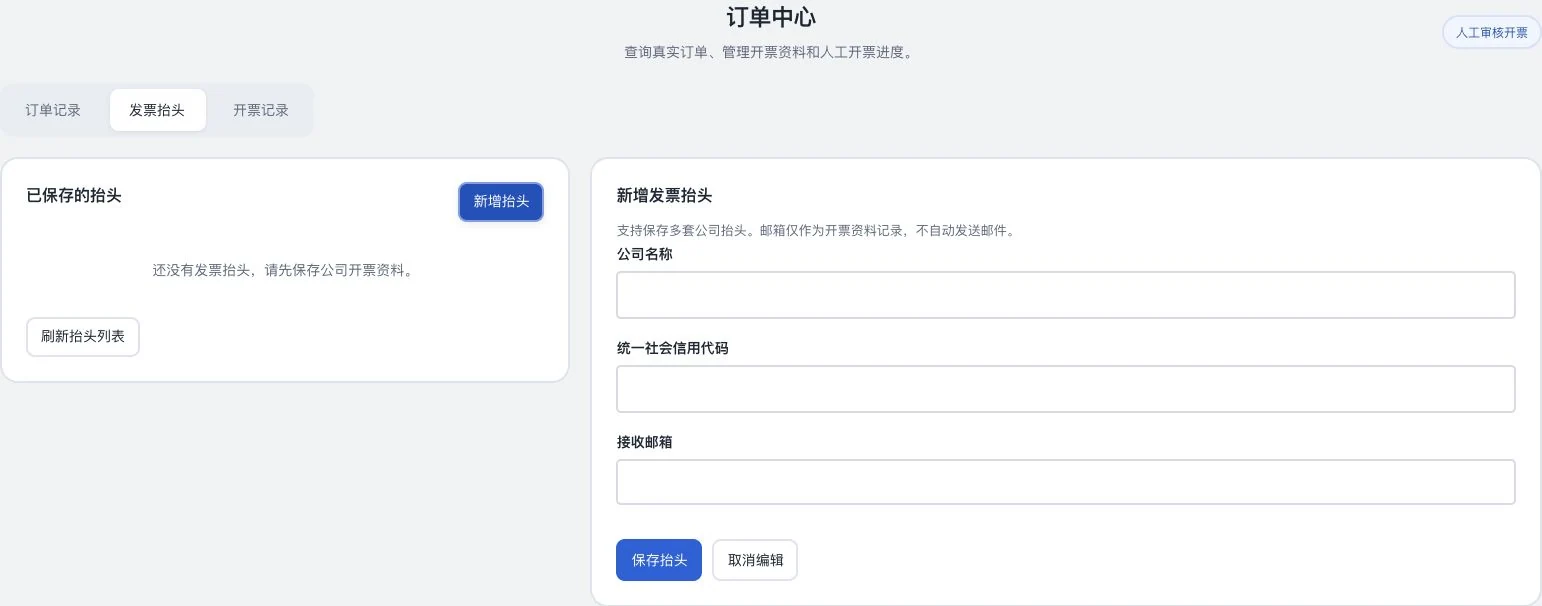
Company name, Unified Social Credit Code, and email are blank. Nothing entered or saved, and no invoice application submitted. Email is retained only as billing information; this does not automatically send messages.
See this feature's highlights.
Save your invoice details.
See the actual stepsSelect the relevant order and submit an invoice request.
See the actual stepsAdd information or resubmit according to status, and download actually issued documents.
See how to checkClearly connect invoice information, orders, and application handling.
How the feature works. Actual results depend on information, permissions, and service requirements.
When to use it
When your order is eligible for the actual invoicing process, clearly connect the heading, order and application status.
your invoice heading and corresponding order.
application feedback, requests for more information and actual issued files.
Complete steps
Save invoicing details, select your own orders and request invoices. View status, resubmit as required and download actually issued files. Operators issue tax invoices; this is not an automatic tax API and still awaits operational validation.
Save your invoice details.
Select the relevant order and submit an invoice request.
Add information or resubmit according to status, and download actually issued documents.
Explain the feature through real work
Suppose submitted heading information needs correction.
Hypothetical scenario · Feature explanation, not a customer case or completed AI resultUnderstand the tool and human handling separately
Clearly connect invoice information, orders, and application handling.
Select the relevant order and submit an invoice request.
This compares feature handling scopes. Scenarios explain the sequence, not measured efficiency or completed customer cases.
Connect the work from step to step
Download the corresponding file only after it is issued. Live invoicing fulfillment still requires operational acceptance.
Return to Accounts and team workspace for the complete workflowUnderstand before use
Tax invoices are issued by the operator, not an automatic tax API. Actual fulfillment still requires operational acceptance.
Product facts and FAQsBack to the product feature directoryMore details in this product
Keep account growth and entitlement conditions available for lookup.
Explore this feature on its own