Email and WhatsApp · Linbo

Understand the message.Know what to say next.

Linbo beside your emails. WhatsApp conversations, templates and archives. From understanding requirements to preparing the next reply.

See the highlights first
Received email detailsInteractive demo · Fictional email
E
Example BuyerProduct specification and sample inquiry
Page demo

Hello,

Could you share the specifications and available packaging options?

We would also like to confirm the sample process before deciding on an order.

Thank you.

Choose a Linbo action to change this email.
Linbo · Email action demo

Choose an action. Watch this email change.

Summaries, labels, translations and editable drafts appear in the email. Choose favorites or highlights again to toggle them off.

Choose a Linbo action to change this email.

This page uses a fictional email and prepared demo results. Edit your draft and keep it while switching actions; reset clears it. No AI request or real email is sent.

What do the six actions do?

WhatsApp · Your channel and message workspace

Beyond email.
Keep conversations moving too.

Explore channels, conversations, templates, history and AI assistance separately. Actual sending always follows your account and service conditions.

Route 01

WhatsApp Web

Pair your account with a QR code or phone number and review connection and sign-in status. This uses unofficial automation and depends on current benefits, running services and network conditions.

  • Sign in, switch, restore or delete your own account.
  • The Web route has no official template center.
  • Network tests do not guarantee freedom from platform account restrictions.
Connection methods and requirements
Route 02

Alibaba Cloud ChatApp

Use your business information and number to access WhatsApp Business API through Alibaba Cloud ChatApp. Templates, messaging windows and fees follow actual upstream platform rules.

  • After preparing variable templates, check upstream review status.
  • Conversations are subject to channel rules such as the 24-hour window.
  • HTTP callbacks must be publicly reachable. Check actual receipts for delivery.
Conversation and template conditions
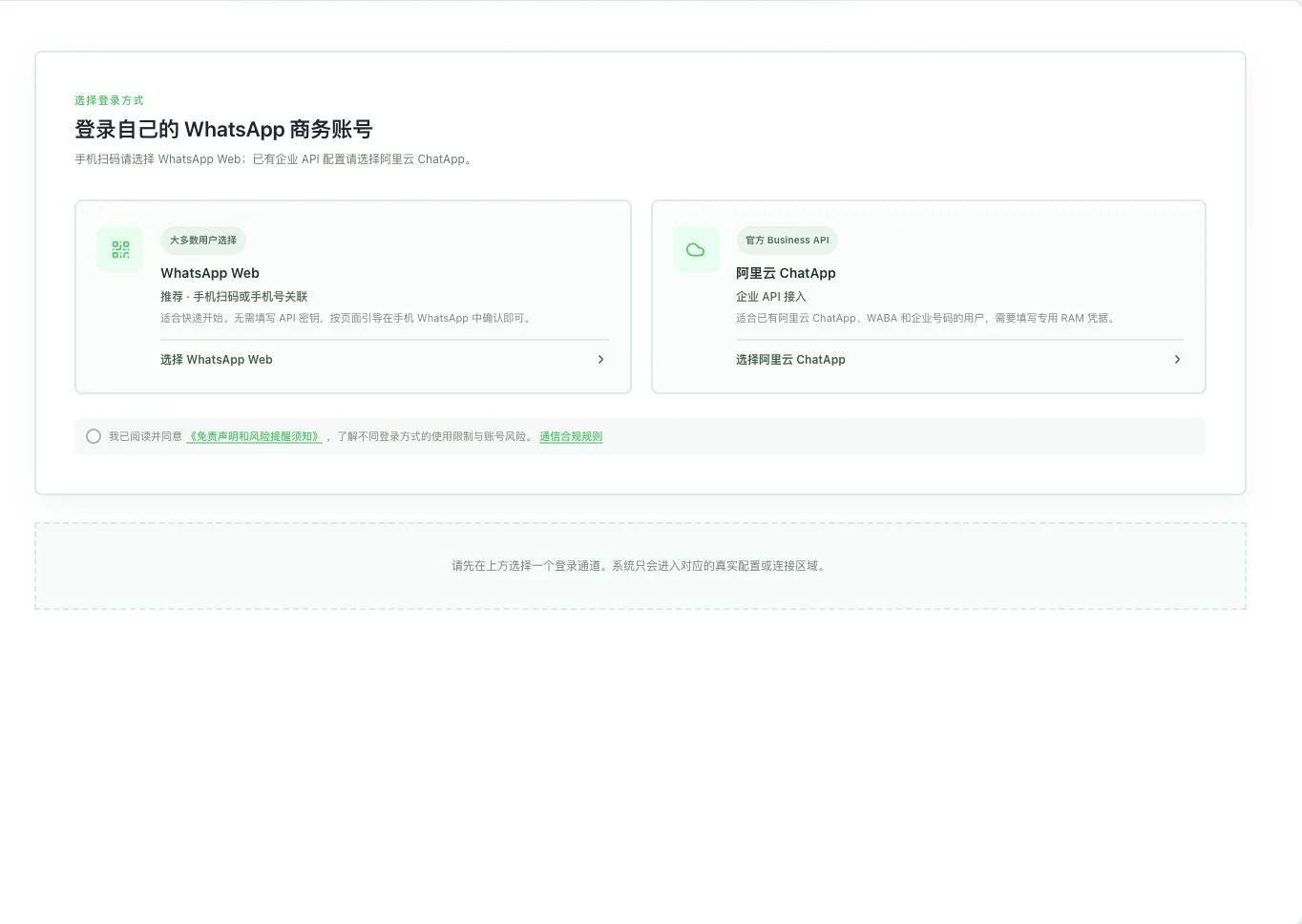
Lingdonggu WhatsApp Web and Alibaba Cloud ChatApp connection-choice interface with rules unchecked and no connection
WhatsApp connection selection · Actual interface detail

Only two routes are shown. No channel selection, rule agreement, scan, or connection occurred. Web uses unofficial automation; ChatApp requires the user’s business, number, and channel conditions.

Translation, understanding and reply preparation

Select a message.
Prepare the next line clearly.

Actively choose message translation, conversation analysis or reply suggestions. After reviewing the draft, keep checking specifications, quantities, delivery dates and commitments.

How to understand this message

Individual translation uses the selected text. Reply suggestions reference up to 8 recent messages, each truncated to 800 characters. Message analysis can synchronize customer records first, then prepare a draft for human confirmation.

How to continue from this draft

Edit using actual product facts and decide which part to use. AI configuration and credits must be available. Understanding messages, editable drafts and actual sending are confirmed separately.

Assistance in the browser

The browser extension can translate selected incoming messages, prepare replies and check for accidental Chinese text in WhatsApp Web. Installation, authorization, page compatibility and actual-account acceptance are required. It is not an official WhatsApp plugin.

Web translation and reply checks

Conversations, templates, history and status

Every conversation.
With a source and progress.

Conversations and media

The current channel. The current conversation.

Confirm which of your accounts you are using before viewing its messages, media and history. If the contact is unmatched, check the number and company before adding communication to a customer under your permissions.

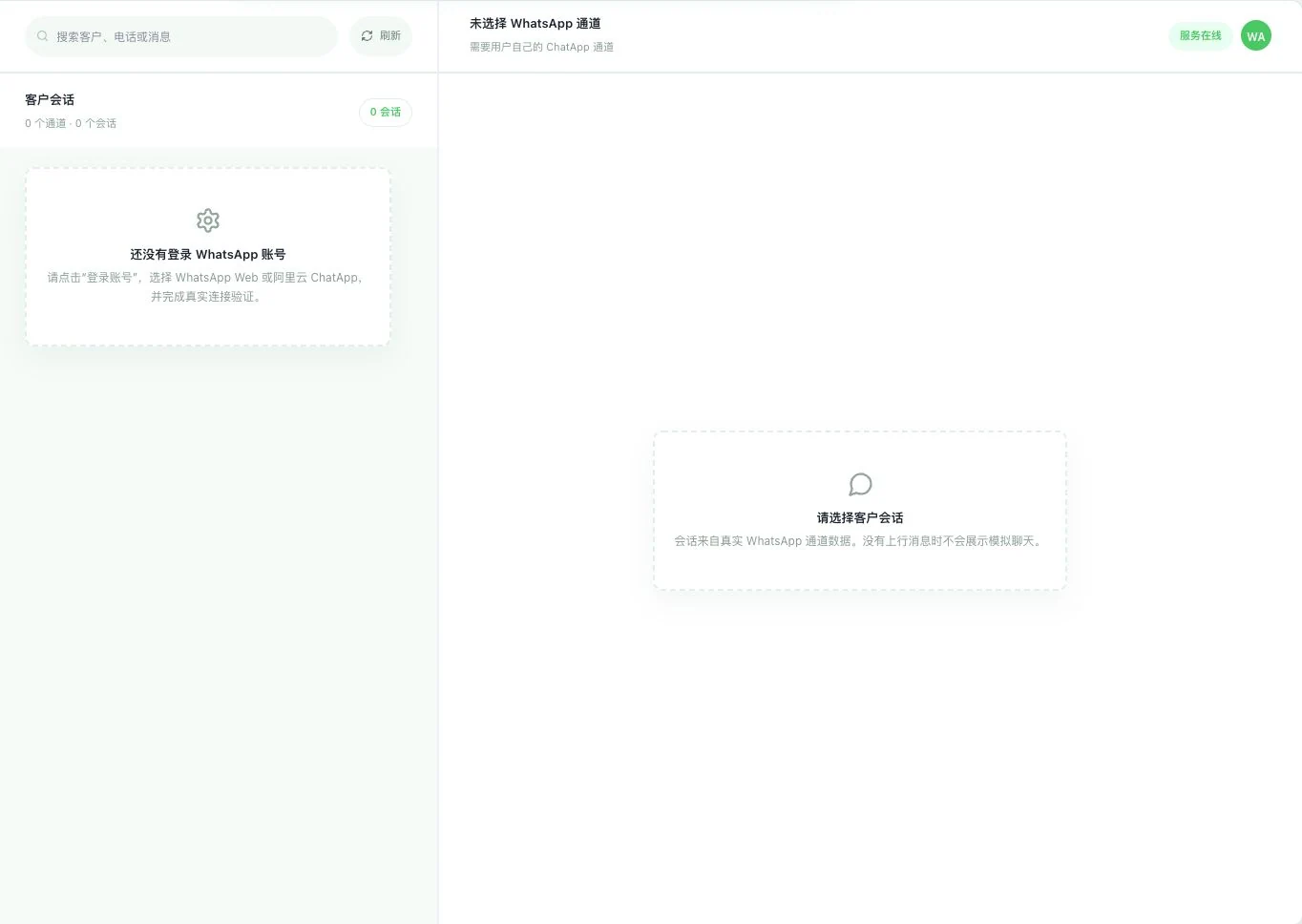
The real screenshot shows 0 channels, 0 conversations and no signed-in account. It does not prove a connection, synchronization or sending.

Explore customer-linked communication
Real empty Lingdonggu WhatsApp workspace with zero channels, zero conversations, and no selected channel
WhatsApp conversation workspace · Real system screenshot

Currently 0 channels and 0 conversations, with no own WhatsApp account signed in. Service-status marks do not prove account connection. No simulated customer messages or actual sending occurred.

Templates and content to send

Before sending, understand the variables.

For ChatApp, prepare templates, variables and media under upstream rules and review actual approval results. Check drafts, pending content and sending status separately. A prepared template is not a sent message.

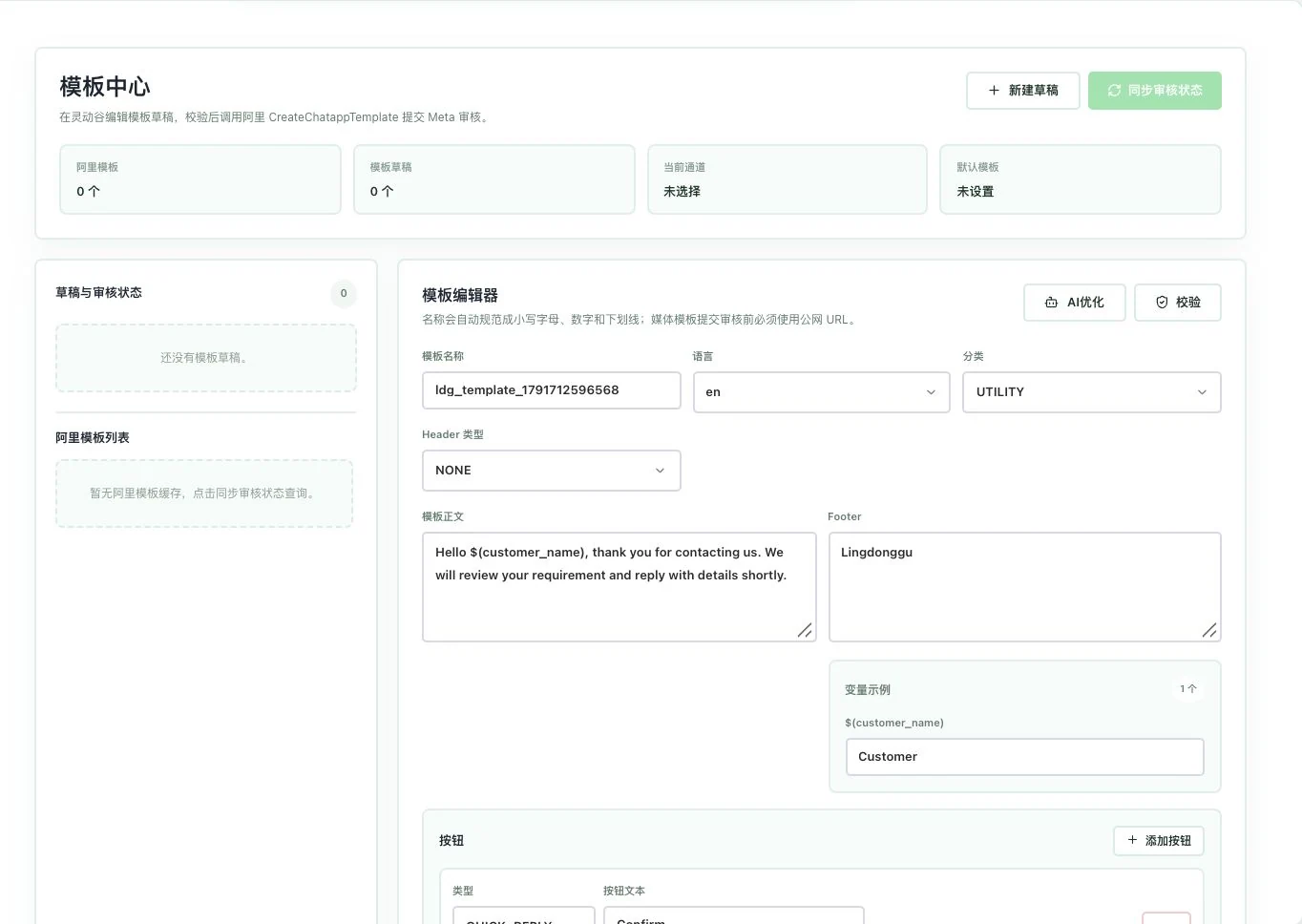
The template screenshot has no actual channel or template draft. The editor contains a default example and does not represent upstream approval.

Real Lingdonggu WhatsApp template center with no channel or draft templates; editor shows the original default example
ChatApp template preparation · Real system screenshot

Template and draft counts are 0, and no channel is selected. The editor shows the original example. No saving, AI call, review synchronization, or Meta submission occurred. Template approval is not implied.

Archives and receipts

What happened before. Back to the records.

Find saved records in archives and review processing status through the actual channel. Provider acceptance, delivery receipts and customer replies have different meanings. Keep checking actual states and times.

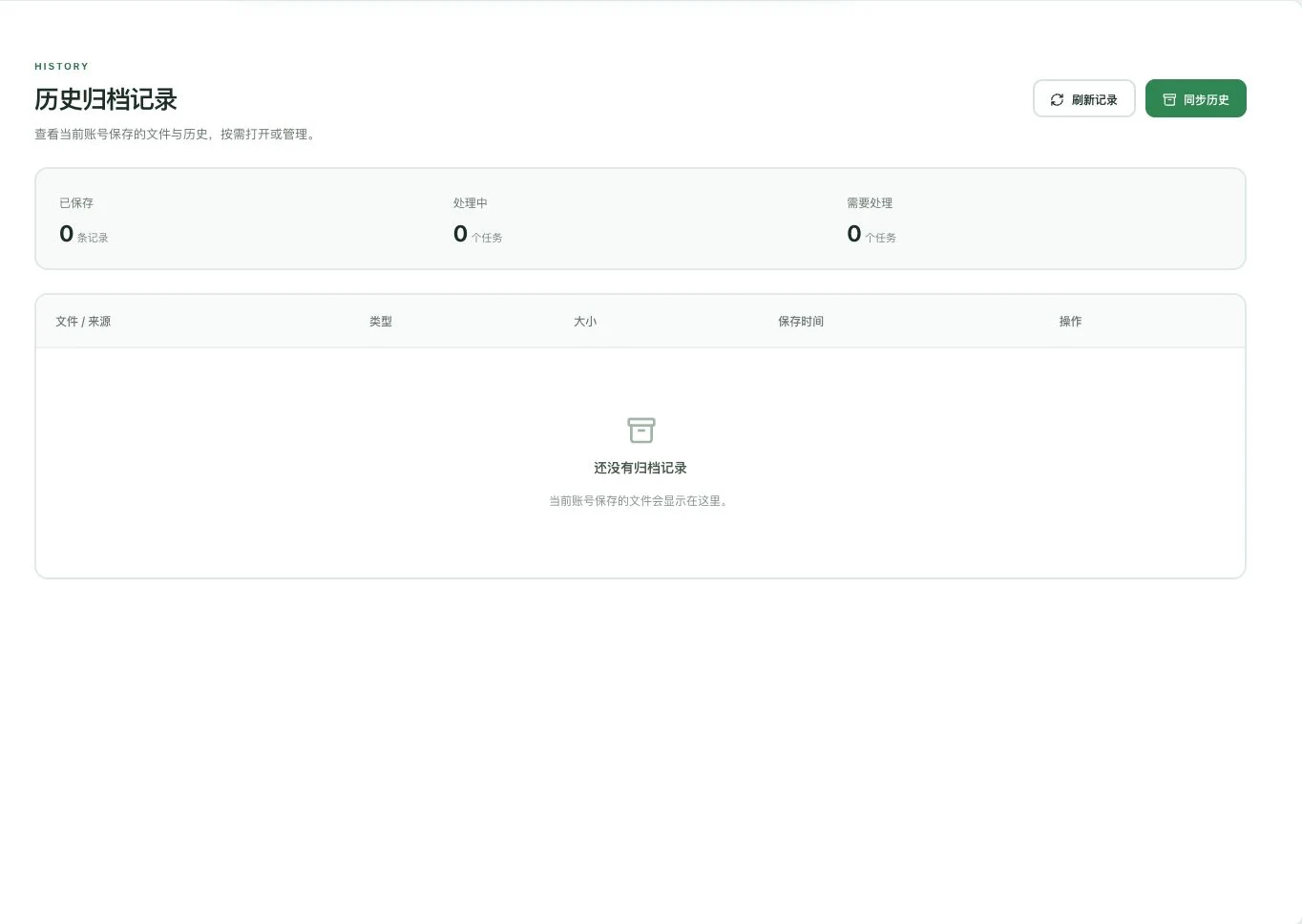
The current archive screenshot is an empty state with no records. Actual messages and receipts require account authorization, running services and publicly reachable callbacks.

Real empty Lingdonggu WhatsApp historical archive with zero records, processed items, and pending items
WhatsApp historical archive entry · Real system screenshot

No archive records or tasks exist; only the original entry point was opened. No real conversations synchronized, files saved, or messages sent. History archival completion is not established.

See these highlights

An email's key points. A conversation's next step.

Useful capabilities are found in each specific task.

01 / Explore more details

Long email. Clear main points.

Summaries, highlights and labels help you understand the current email.

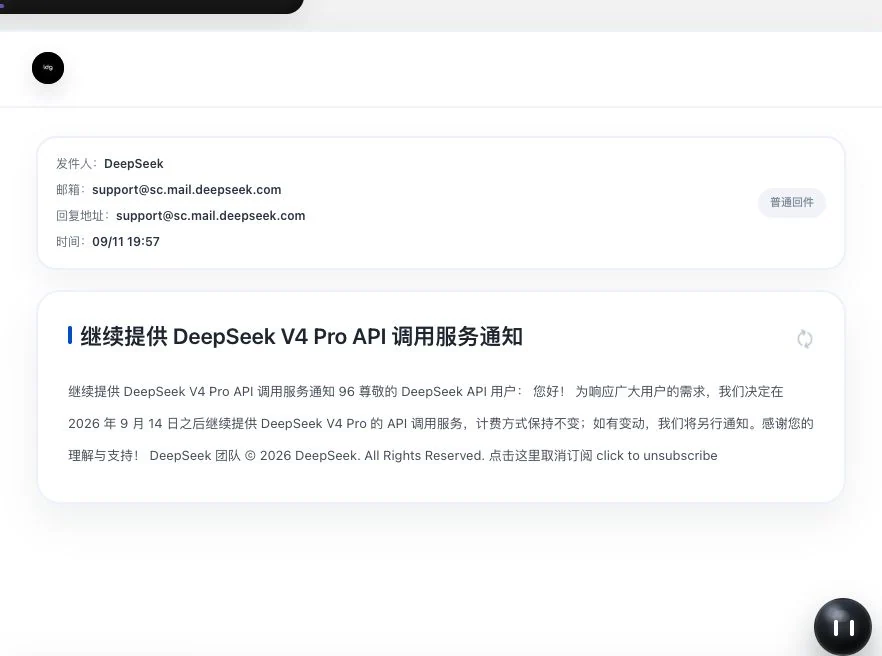
Lingdonggu received-email details showing sender information, subject, and summary of a public service notice; body loading is incomplete
Incoming subject and summary · Actual interface detail

Real received screen of a public service notice. The body was still loading during capture. Only subject and summary are visible; full text or attachment reading success cannot be inferred.

Keep exploring the details

Features in concrete numbers

items

Email business scenarios

Number of scenario options in the email-writing interface.

Features in concrete numbers

types

Output language options

Writing settings. Actual generation depends on models, services and account conditions.

02 / Explore more details

Make these requirements clear.

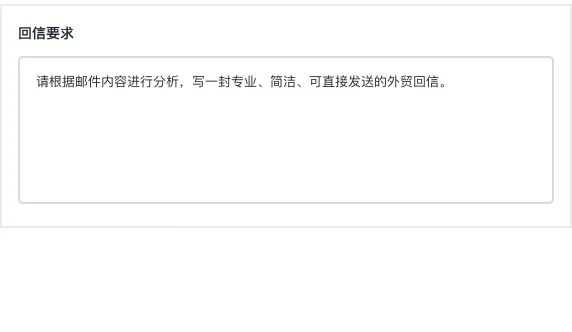
Bring identity templates and additional instructions into reply drafts together.

Crop of the additional-requirements input in the Lingdonggu one-click reply drawer
Additional reply requirements · Actual interface detail

Only the additional-requirements field is shown, without sender identity or account selection. No analysis, reply generation, or email sending occurred.

Keep exploring the details

03 / Explore more details

One more look before sending.

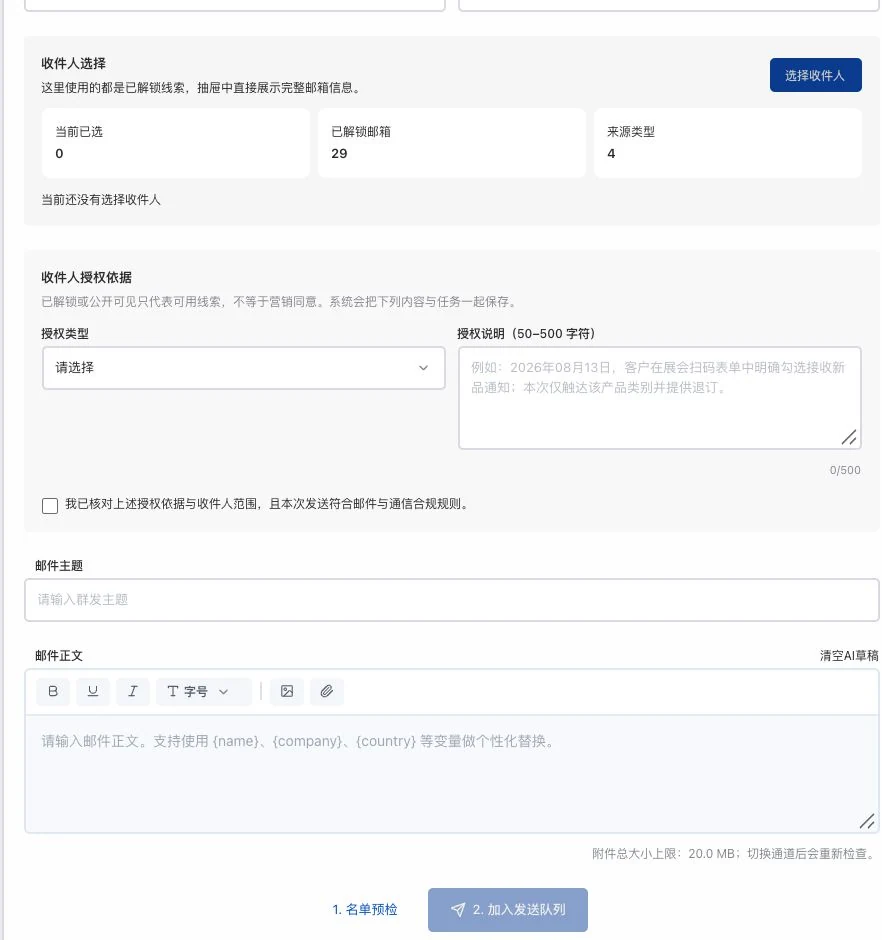
Recipients, body text and the basis for contact each have a place to check.

Crop of the Lingdonggu outreach form with recipient selection, authorization basis, subject, body, and list preflight entry
Outreach email and pre-send checks · Actual interface detail

No recipients selected; basis, subject, and body are empty. No list preflight, task creation, or sending occurred. Existing information counts do not indicate contact permission.

Keep exploring the details

Features in concrete numbers

types

Tone options

Adjustable writing directions. You still check the final draft.

Numbers come from current feature definitions or real interfaces. Workflow numbers explain the presentation on this page; demonstration data is not a promise of efficiency or business results.View all features and conditions

An outreach email written for your business.

Factory introductions, inquiry replies and sample follow-ups each need different priorities. Choose scenario, language and tone first, then add product specifications and delivery conditions. 17 scenarios × 18 languages × 10 tones.

Explore this feature
From the current feature

setting combinations

Scenario × Language × Tone

The combination count multiplies option counts. It is not a count of templates, models or validated outputs. Drafts still need human review.

Take a closer look

An outreach email.Starts with real business.

Introducing a factory, replying to an inquiry and following up on samples each need a different focus. Choose a scenario, language and tone, then add actual product facts.

17 scenarios × 18 languages × 10 tones

writing-setting combinations.

This counts option combinations, not templates or verified generated results. Actual drafts depend on the model, information and account conditions.

For this task, start with these choices

First outreach emailEnglishFactory capabilities

Then add your product facts.

Turn specifications, delivery terms and factory information into an email you can keep editing.

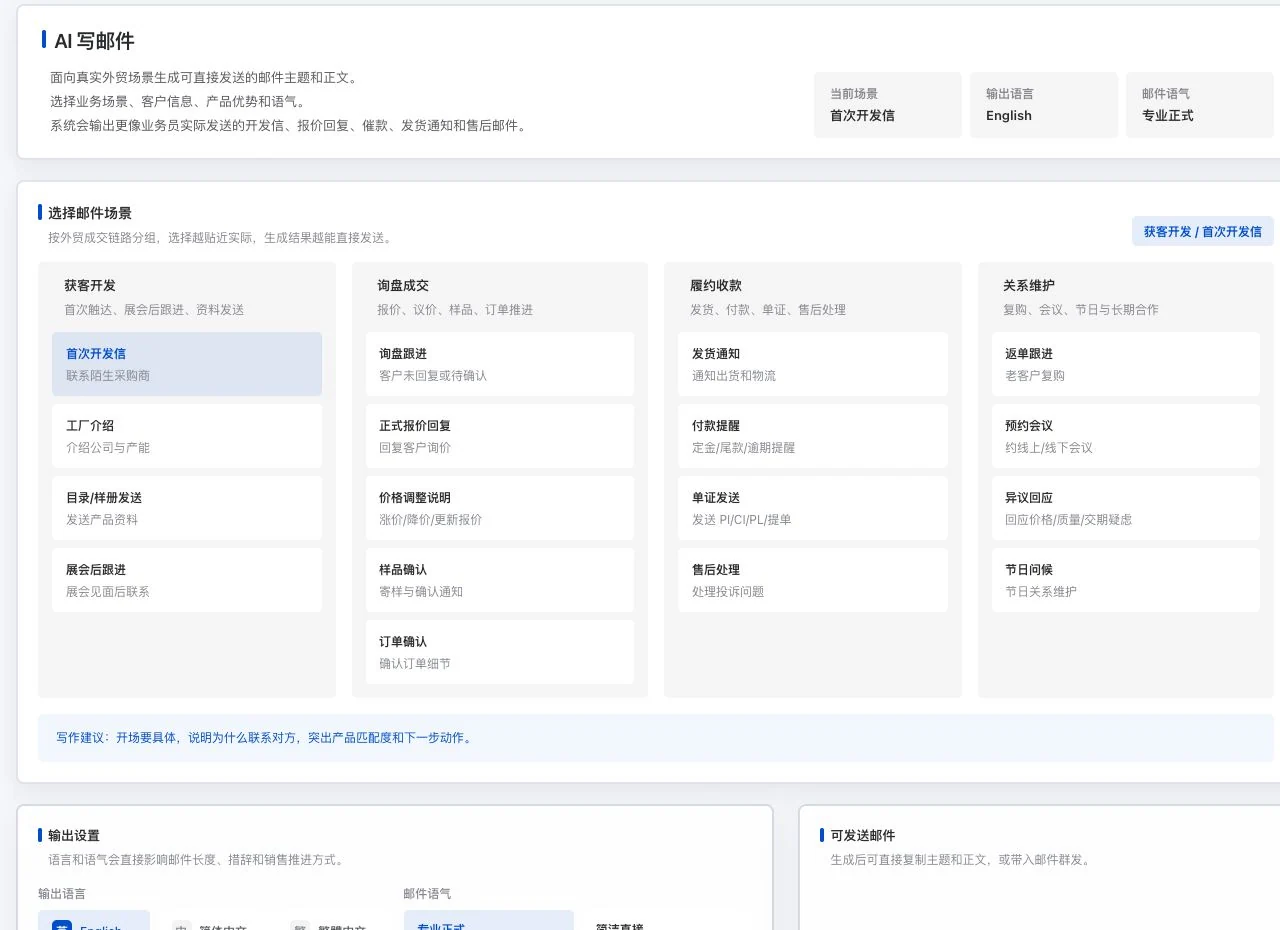
Real Lingdonggu AI email-writing interface showing 17 email scenarios in four groups and language and tone settings
Dedicated email scenarios · Real system screenshot

Original interface with initial outreach selected. No email has been generated. 17 is the current scenario count, not acceptance of model results or sending performance.

Crop of the Lingdonggu outreach form with recipient selection, authorization basis, subject, body, and list preflight entry
Outreach email and pre-send checks · Real system screenshot

No recipients selected; basis, subject, and body are empty. No list preflight, task creation, or sending occurred. Existing information counts do not indicate contact permission.

17 scenarios. 18 languages. 10 tones.

Choose the wording for the business you are handling. See all options directly.

Customer acquisition

  • First outreach email
  • Factory introduction
  • Catalog / sample book
  • Post-show follow-up

Inquiry conversion

  • Inquiry follow-up
  • Formal quotation reply
  • Price adjustment explanation
  • Sample confirmation
  • Order confirmation

Fulfillment and collection

  • Shipment notice
  • Payment reminder
  • Document delivery
  • After-sales handling

Relationship maintenance

  • Repeat-order follow-up
  • Meeting request
  • Objection response
  • Holiday greeting

Writing language

EnglishSimplified ChineseTraditional ChineseSpanishPortugueseFrenchGermanItalianDutchRussianArabicTurkishVietnameseIndonesianThaiHindiJapaneseKorean

Communication tone

Professional and formalConcise and directFriendly and naturalPersuasive salesPremium brandFactory capabilitiesMove negotiations forwardUrgent follow-upSincere resolutionExecutive briefing

Counts describe current writing settings, not separate models. Generation depends on actual services, and people must confirm drafts.

01 · Read incoming email

Context. Know its source first.

View the sender, subject, and time in received-email details. Read body text and attachments through your own mailbox. Open Linbo beside the email to continue understanding and preparing a reply.

Explore email reading and Linbo separately
02 · Summarize email

A long email. Find the main thread first.

Request AI organization in the selected received-email details, then check the context in the body. Requires an available model and the current email body. Menu screenshots show action entry points only.

Explore email reading and Linbo separately
03 · Email labels

This email. What it is about.

Request category and keyword-label suggestions beside the current email to help identify business matters. Check labels against the customer’s words. A visible menu does not mean analysis has run.

Explore email reading and Linbo separately
04 · One-click translation

Read it in Chinese. Compare the original meaning.

Request a Simplified Chinese translation of the selected email. Chinese content can also be organized into clearer Chinese. Verify product specifications, numbers, dates, and clauses against the original.

Explore email reading and Linbo separately
05 · One-click reply

With your identity. Prepare the reply.

Choose an existing sender identity or the current mailbox identity, add requirements, and generate an editable draft. The screenshot only shows the requirements field. Verify facts and commitments; sending requires separate confirmation.

Explore email reading and Linbo separately
06 · Add to favorites

Worth continuing. Keep it close.

Organize the current email and existing assisted results. Favorites does not call AI. Body text stays on the current page; conversations save only necessary length-limited metadata. After switching or ending a session, read from the inbox again as needed.

Explore email reading and Linbo separately
07 · Highlight key points

Important content. Read it once more.

Request original-text highlights in the current received email, then verify lead times, quantities, and other conditions in the actual sentences. Requires a model and original content. Do not infer a closed sale from highlights.

Explore email reading and Linbo separately

Designed for everyday work

Make the wording fit this conversation.

A long email. Find the main thread first.

Summaries, labels and highlights use the current email. Check important numbers against the original.

Learn more

Another language. Keep the context.

Translation helps understanding. Reply drafts combine the incoming email with your product facts.

Learn more

Before sending. Another place to check.

Check recipients, body text and actual status separately, then decide which email to send.

Learn more

From draft to sending task

After the email is written.These details still matter.

Mailbox identity, list provenance, body text and task status each have a place to check.

Configure your own mailbox and test receiving and sending separately. Sender-identity templates explain who you are; outreach body templates explain what you want to say. After choosing templates, check the subject, body, attachments and recipient sources.

Enter the basis for contact before running pre-send checks. Recheck after changing the body or list. Monitor tasks under actual channels, quotas and sending intervals. Pause, resume and cancel controls affect only unprocessed tasks.

Crop of the Lingdonggu outreach form with recipient selection, authorization basis, subject, body, and list preflight entry
Outreach email and pre-send checks · Real system screenshot

No recipients selected; basis, subject, and body are empty. No list preflight, task creation, or sending occurred. Existing information counts do not indicate contact permission.

  1. 01

    Mailbox and identity

    Verify IMAP receiving and SMTP sending separately. Confirm which of your mailboxes is currently in use.

  2. 02

    Body text and basis for contact

    Check the list, subject, attachments and opt-out restrictions individually. Recheck after changes.

  3. 03

    Tasks and exceptions

    View pending, sent and exception records, distinguishing provider acceptance, delivery and customer replies.

Stop here

Treat a completed draft as an email already sent.

Continue this way

View drafts, check results, pending queues and actual sending records separately.

Passing checks does not guarantee delivery. Actual messaging depends on mailbox permissions, channel availability and provider conditions.

Compare to see clearly

The same email.Three different next steps.

A comparison of feature uses. AI outputs are drafts, not messages already sent.

What you provide, what the software helps organize and what needs confirmation next.
The taskYou provideThe software helps organizeYou confirm
SummaryCurrent email bodyA summary to help organize contextCheck key context for completeness, then return to the original
TranslationCurrent email bodyChinese-language understanding assistanceSpecifications, quantities, dates and transaction terms
ReplyIncoming email, identity template and additional requirementsEditable reply draftRecipients, prices, delivery dates and the decision to send

Explore every feature

Every tool.
A specific purpose.

13 features, with body text directly visible. Read real interfaces alongside process notes, or open individual feature pages for more detailed inputs, outputs and examples.

01

Your own receiving and sending accounts

Implemented; configuration required

LDG-022

Your own email. Connect receiving and sending first.

Handle customer communication in your own authorized account.

Configure, test, switch or delete your own email accounts. Receiving uses IMAP and sending uses SMTP. Actual provider permissions are required; a successful connection test does not authorize bulk sending.

How to continue
  1. 01

    Enter IMAP receiving and SMTP sending settings for your own email account.

  2. 02

    Run connection tests and check provider requirements and authorization scope.

  3. 03

    Switch or delete accounts as needed, then review the corresponding emails.

Use and review

A successful connection test is not provider approval for bulk sending. Actual sending and receiving depend on the provider and account permissions.

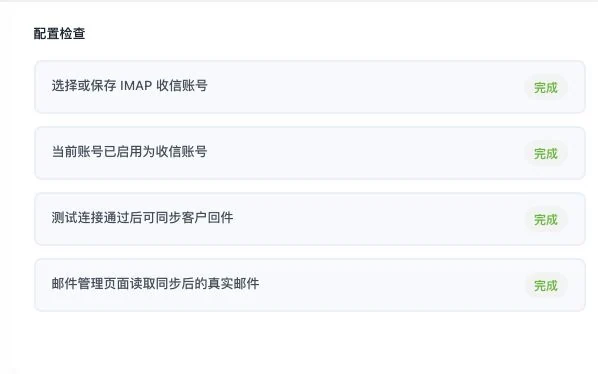
Crop of Lingdonggu mailbox configuration checks showing four statuses for the demo account
Mailbox configuration checks · Real system screenshot

Original current-account check crop. No credentials are shown or changed. Statuses do not mean all providers connect, bulk sending is permitted, or specific emails were delivered.

Explore this feature separately
02

Outreach templates and drafts

Implemented; configuration required

LDG-023

The same product facts. An outreach email that fits.

Start with editable wording and continue outreach using verified information.

Generate and edit outreach subjects and body text from product facts. Copy or transfer drafts into outreach, choose existing templates, add attachments and check recipient sources. Sender-identity templates differ from body templates; generating a draft does not send it.

How to continue
  1. 01

    Choose the email scenario, language and tone, specify the product and audience, then edit the generated subject and body.

  2. 02

    Copy the content or bring the draft into the outreach workspace for further editing.

  3. 03

    Add attachments or select existing templates as needed in outreach, then rerun preflight after checking recipient sources and the basis for contact.

Use and review

The writing interface offers 17 scenarios, 18 languages and 10 tones. Generation requires actual model conditions; importing a draft does not send it. Attachments, existing templates and preflight are handled separately in outreach.

Real Lingdonggu AI email-writing interface showing 17 email scenarios in four groups and language and tone settings
Dedicated email scenarios · Real system screenshot

Original interface with initial outreach selected. No email has been generated. 17 is the current scenario count, not acceptance of model results or sending performance.

Explore this feature separately
03

Inbox, reading assistance and replies

Implemented; configuration required

LDG-024

Understand this email. Write the next one well.

Read and prepare a reply around the same incoming email, keeping the customer context close at hand.

View received, sent and saved emails. AI provides 5 types of assistance: summaries, labels, translation, reply drafts and highlight marking. Drafts can include sender identity and requirements; edit before sending. Models and mailboxes must be ready.

How to continue
  1. 01

    Select an incoming email in the inbox and read the original and reply address.

  2. 02

    Open Linbo beside this message's details and use summaries, tags, Chinese translation, replies or key-point assistance as needed.

  3. 03

    Choose an identity, add requirements, edit the draft, then check and decide whether to send. Sent and favorite folders let you revisit existing content.

Lingdonggu received-email details showing sender information, subject, and summary of a public service notice; body loading is incomplete
Incoming subject and summary · Real system screenshot

Real received screen of a public service notice. The body was still loading during capture. Only subject and summary are visible; full text or attachment reading success cannot be inferred.

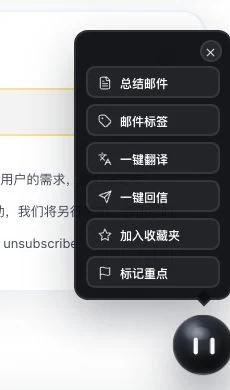
Real Linbo floating menu with six actions: summarize, label, translate, reply, favorites, and highlights
Linbo email actions · Real system screenshot

Only the original menu beside received-email details was opened. No AI action or favorite addition was executed. Five AI actions require models and points; favorites does not call AI.

Crop of the additional-requirements input in the Lingdonggu one-click reply drawer
Additional reply requirements · Real system screenshot

Only the additional-requirements field is shown, without sender identity or account selection. No analysis, reply generation, or email sending occurred.

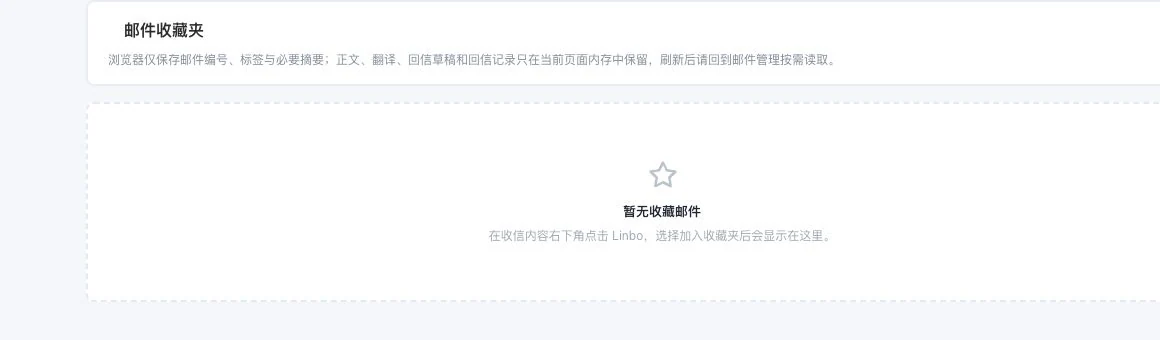
Real empty Lingdonggu email favorites state with explanations of page and conversation retention
Email favorites directory · Real system screenshot

No favorite emails exist and none were added. Complete body text and assisted results remain only on the current page. Conversations retain only necessary length-limited metadata, not permanent full archives.

Use and review

Linbo's controls appear beside the selected incoming message. AI models, usage allowance and email must be ready. Check numbers, specifications, dates and commitments against the original item by item.

Explore this feature separately
04

Pre-send check

Implemented; configuration required

LDG-025

Before you press send, check once more.

Keep a verification step for important information before sending.

Record the basis for contact, then check recipients, body text, attachments, blocks and unsubscribes. Recheck after changing content. Passing checks does not guarantee delivery or inbox placement.

Crop of the Lingdonggu outreach form with recipient selection, authorization basis, subject, body, and list preflight entry
Outreach email and pre-send checks · Real system screenshot

No recipients selected; basis, subject, and body are empty. No list preflight, task creation, or sending occurred. Existing information counts do not indicate contact permission.

How to continue
  1. 01

    Explain the basis for contact and check the list's source first.

  2. 02

    Check recipients, body, attachments, blocks and unsubscribes.

  3. 03

    Recheck after content changes, then proceed through the actual channel.

Use and review

Passing checks does not guarantee delivery, inbox placement or a reply.

Explore this feature separately
05

Review unfamiliar company lists

Internal management

LDG-026

A list with a source. A process with a basis.

Keep clear operational review records and do not send directly to unknown lists.

For operators to check the sources and processing basis of unfamiliar company lists. Users still confirm sending after review. This route is unavailable for lists of individuals or unknown entities.

How to continue
  1. 01

    Operations verify the source of unfamiliar company lists.

  2. 02

    Check the basis for processing and eligible entities against the rules.

  3. 03

    After review, the user still decides whether to proceed with sending.

Use and review

This is an internal review process only. It is not available for lists of individuals or unknown entities and is not promised in customer plans.

Workflow illustration · Not a system screenshot
01

Operations verify the source of unfamiliar company lists.

02

Check the basis for processing and eligible entities against the rules.

03

After review, the user still decides whether to proceed with sending.

This feature retains instructions and usage conditions but does not yet show actual business results.

Explore this feature separately
06

Sending queues and exceptions

Awaiting operational validation

LDG-027

How far has the task gone? Check actual status.

Keep reviewing task states, exceptions and follow-on handling in one place.

Process queues using available channels, remaining quotas and sending intervals. View tasks, sent messages and exceptions. After receiving mail, replies can stop subsequent outreach. Actual channels still await operational validation.

How to continue
  1. 01

    Verify available channels, quota and sending interval.

  2. 02

    Review pending, sent and exception states in the queue.

  3. 03

    Once receiving is running, stop further outreach according to actual replies.

Use and review

The live sending channel still requires operational acceptance. Provider acceptance, delivery and customer replies are different states.

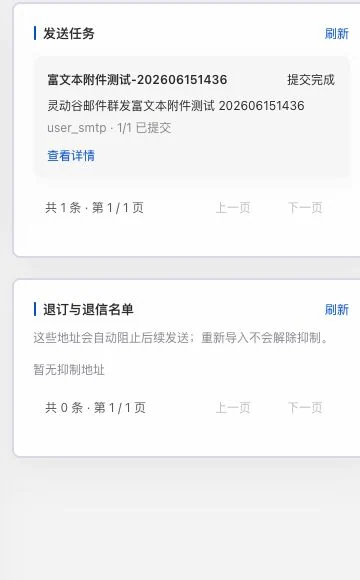
Lingdonggu sending-task history showing one old test task submitted, with empty unsubscribe and bounce lists below
Task history and unsubscribe/bounce directory · Real system screenshot

An old rich-text attachment test task shows submission complete; unsubscribe and bounce lists are empty. This does not prove current queue delivery or customer receipt. No queue controls were executed.

Explore this feature separately
07

Pause, resume and cancel tasks

Implemented; configuration required

LDG-028

Still pending? Stop and take another look.

Leave room to adjust remaining sending tasks.

View task history and progress, and pause, resume or cancel remaining sends. These controls apply to pending tasks; messages already handed to providers cannot be recalled.

How to continue
  1. 01

    Open task history and review current progress.

  2. 02

    Pause, resume or cancel remaining tasks according to the actual situation.

  3. 03

    Review the records to see which actions are still pending.

Workflow illustration · Not a system screenshot
01

Open task history and review current progress.

02

Pause, resume or cancel remaining tasks according to the actual situation.

03

Review the records to see which actions are still pending.

This feature retains instructions and usage conditions but does not yet show actual business results.

Use and review

Controls apply to pending tasks. This feature cannot recall emails already handed to the provider.

Explore this feature separately
08

Unsubscribe and bounce handling

Implemented; configuration required

LDG-029

They do not want more messages. Keep the record.

Carry opt-out and failure records into future work.

Save unsubscribed, bounced and blocked addresses to avoid contacting people who opted out. Reimporting does not automatically remove restrictions. Check actual statuses separately for provider acceptance, delivery and replies.

Lingdonggu sending-task history showing one old test task submitted, with empty unsubscribe and bounce lists below
Task history and unsubscribe/bounce directory · Real system screenshot

An old rich-text attachment test task shows submission complete; unsubscribe and bounce lists are empty. This does not prove current queue delivery or customer receipt. No queue controls were executed.

How to continue
  1. 01

    Review unsubscribed, bounced and blocked addresses.

  2. 02

    Retain handling records and contact restrictions according to actual receipts.

  3. 03

    Keep checking existing states when preparing another list.

Use and review

Reimporting does not automatically remove restrictions. Final delivery and replies follow actual status.

Explore this feature separately
09

Connection routes and conditions

Awaiting operational validation

LDG-030

Choose a route. Understand its conditions first.

Understand the usage conditions of each integration route separately.

View 2 routes: Web and Alibaba Cloud ChatApp. Web uses unofficial automation. ChatApp requires your business and number and is subject to templates, the 24-hour window and channel fees.

How to continue
  1. 01

    Review the WhatsApp Web and ChatApp integration descriptions.

  2. 02

    Confirm your own business, number, templates and messaging-window conditions.

  3. 03

    Prepare account authorization and channel configuration for an available route.

Use and review

Web uses unofficial automation. ChatApp is subject to template rules, the 24-hour window and channel fees.

Lingdonggu WhatsApp Web and Alibaba Cloud ChatApp connection-choice interface with rules unchecked and no connection
WhatsApp connection selection · Real system screenshot

Only two routes are shown. No channel selection, rule agreement, scan, or connection occurred. Web uses unofficial automation; ChatApp requires the user’s business, number, and channel conditions.

Explore this feature separately
10

Authorized login and network connection

Implemented; configuration required

LDG-031

Your account. Connect through authorization.

Give account connection and subsequent management clear tools.

Pair by QR code or phone number. Switch, restore or delete your own login accounts, and configure and test connections as required. Entitlements and running services are needed; network configuration cannot guarantee an unrestricted account.

How to continue
  1. 01

    Pair your own account using a QR code or phone number.

  2. 02

    Configure and test the network connection according to channel requirements.

  3. 03

    Switch, restore or delete your own connected account when needed.

Use and review

Benefits, running services and page compatibility are required. Network configuration does not guarantee freedom from account restrictions.

Lingdonggu WhatsApp Web and Alibaba Cloud ChatApp connection-choice interface with rules unchecked and no connection
WhatsApp connection selection · Real system screenshot

Only two routes are shown. No channel selection, rule agreement, scan, or connection occurred. Web uses unofficial automation; ChatApp requires the user’s business, number, and channel conditions.

Explore this feature separately
11

Conversations, templates, media and archives

Implemented; configuration required

LDG-032

What was said? Revisit the original conversation.

Connect current conversations with those that already happened.

View conversations, media and history in your own account. ChatApp supports variable templates and upstream reviews; Web has no official template center. HTTP callbacks need public reachability. Use receipts to check delivery.

How to continue
  1. 01

    Open conversations and media from your connected account.

  2. 02

    Prepare variable templates according to the channel and review upstream approval or receipts.

  3. 03

    Revisit archived history and keep checking the corresponding communication.

Real empty Lingdonggu WhatsApp workspace with zero channels, zero conversations, and no selected channel
WhatsApp conversation workspace · Real system screenshot

Currently 0 channels and 0 conversations, with no own WhatsApp account signed in. Service-status marks do not prove account connection. No simulated customer messages or actual sending occurred.

Real Lingdonggu WhatsApp template center with no channel or draft templates; editor shows the original default example
ChatApp template preparation · Real system screenshot

Template and draft counts are 0, and no channel is selected. The editor shows the original example. No saving, AI call, review synchronization, or Meta submission occurred. Template approval is not implied.

Real empty Lingdonggu WhatsApp historical archive with zero records, processed items, and pending items
WhatsApp historical archive entry · Real system screenshot

No archive records or tasks exist; only the original entry point was opened. No real conversations synchronized, files saved, or messages sent. History archival completion is not established.

Use and review

ChatApp and Web have different capabilities. HTTP callbacks must be publicly reachable, and delivery follows actual receipts.

Explore this feature separately
12

Translation, analysis and reply drafts

Implemented; configuration required

LDG-033

Select a message. Prepare the reply around it.

Understand messages or prepare drafts for the needs of this conversation.

Select messages yourself for translation, analysis or replies. Single-message translation uses the selected text. Replies can include up to 8 recent messages of up to 800 characters each. Analysis can synchronize CRM first, then request drafts for human confirmation. AI configuration and credits are required.

Workflow illustration · Not a system screenshot
01

Actively select the message you need to understand.

02

Request translation, analysis or a reply draft.

03

Edit against the original before deciding how to continue communicating.

This feature retains instructions and usage conditions but does not yet show actual business results.

How to continue
  1. 01

    Actively select the message you need to understand.

  2. 02

    Request translation, analysis or a reply draft.

  3. 03

    Edit against the original before deciding how to continue communicating.

Use and review

Individual translation processes the selected text. Reply suggestions may include up to 8 recent messages of up to 800 characters each. Analysis can synchronize to CRM before requesting a draft. AI configuration and credits are required; people confirm the results.

Explore this feature separately
13

Web translation and reply checks

Awaiting operational validation

LDG-085

A message in your browser. Understand, then check.

Continue understanding and preparing communication alongside the current browser conversation.

Translate selected messages, draft replies and check unintended Chinese-language sends in WhatsApp Web. Requires extension installation, authorization, page compatibility and actual account validation.

How to continue
  1. 01

    Install and authorize the browser extension according to actual requirements.

  2. 02

    Select an incoming WhatsApp Web message to translate or prepare a reply.

  3. 03

    Check for accidental Chinese replies and review the content before deciding to send.

Use and review

Requires extension installation, page compatibility, and actual account acceptance. This is not an official WhatsApp plugin.

Workflow illustration · Not a system screenshot
01

Install and authorize the browser extension according to actual requirements.

02

Select an incoming WhatsApp Web message to translate or prepare a reply.

03

Check for accidental Chinese replies and review the content before deciding to send.

This feature retains instructions and usage conditions but does not yet show actual business results.

Explore this feature separately

Understand before use

Get ready.
Start with your own work.

Actual messaging requires account authorization, provider connections and the relevant entitlements. WhatsApp Web uses unofficial automation; channel conditions are explained separately. It does not negotiate or confirm sales automatically.

Product facts and availability notes

This catalogue explains existing features and their conditions. Availability depends on the release, account permissions, service configuration and completed validation. Some items are internal-only or still await operational validation.

Usage and pricingProduct facts and FAQs

Other work to explore too

Quotations and trade documents

From an amount to a complete explanation.

Explore this product