Check the buyer and seller details.
Check the seller, buyer, and transaction information.
See the actual stepsCommercial invoice
Give both parties the same goods and amount information to compare.
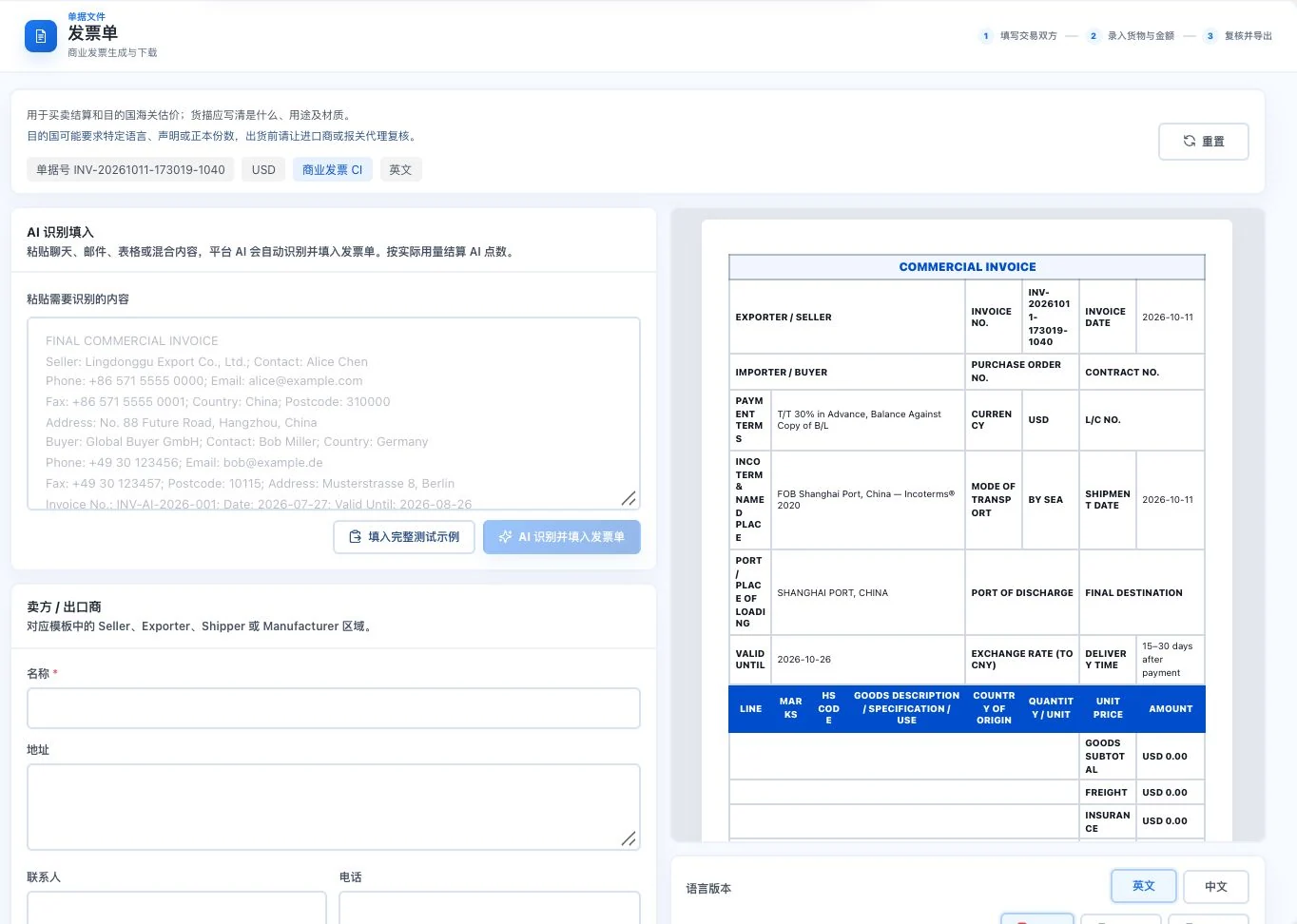
The original form is empty except for default dates and transaction terms. Light text on the left is prompt example text. No AI call, full example entry, or export occurred. A commercial invoice is not a tax invoice.
See this feature's highlights.
Check the seller, buyer, and transaction information.
See the actual stepsEnter goods, quantity, unit price, currency, and transport information.
See the actual stepsView the preview, review each item, then generate the business document.
See how to checkGive both parties the same goods and amount information to compare.
How the feature works. Actual results depend on information, permissions, and service requirements.
When to use it
When preparing a commercial invoice, verify both parties' identities before checking goods and amounts item by item.
the seller, buyer and information for this transaction.
products, quantities, unit prices, currency and shipping information.
Complete steps
Prepare transaction information and files for company commercial invoices. A commercial invoice is not a VAT invoice or tax-authority-issued document.
Check the seller, buyer, and transaction information.
Enter goods, quantity, unit price, currency, and transport information.
View the preview, review each item, then generate the business document.
Explain the feature through real work
Suppose an order's quantity has changed.
Hypothetical scenario · Feature explanation, not a customer case or completed AI resultUnderstand the tool and human handling separately
Give both parties the same goods and amount information to compare.
Enter goods, quantity, unit price, currency, and transport information.
This compares feature handling scopes. Scenarios explain the sequence, not measured efficiency or completed customer cases.
Connect the work from step to step
Give the reviewed document to the responsible business staff. Handle tax invoices and declarations through their separate professional processes.
Return to Quotations and trade documents for the complete workflowUnderstand before use
A commercial invoice is not a VAT invoice or a tax invoice issued by a tax authority.
Product facts and FAQsBack to the product feature directoryMore details in this product
Keep required purchasing terms in one order.
Explore this feature on its own