Save what is worth researching.
Save companies or contacts that need further checking.
See the actual stepsFavorites and list imports
Keep temporary discoveries so your next search has a starting point.
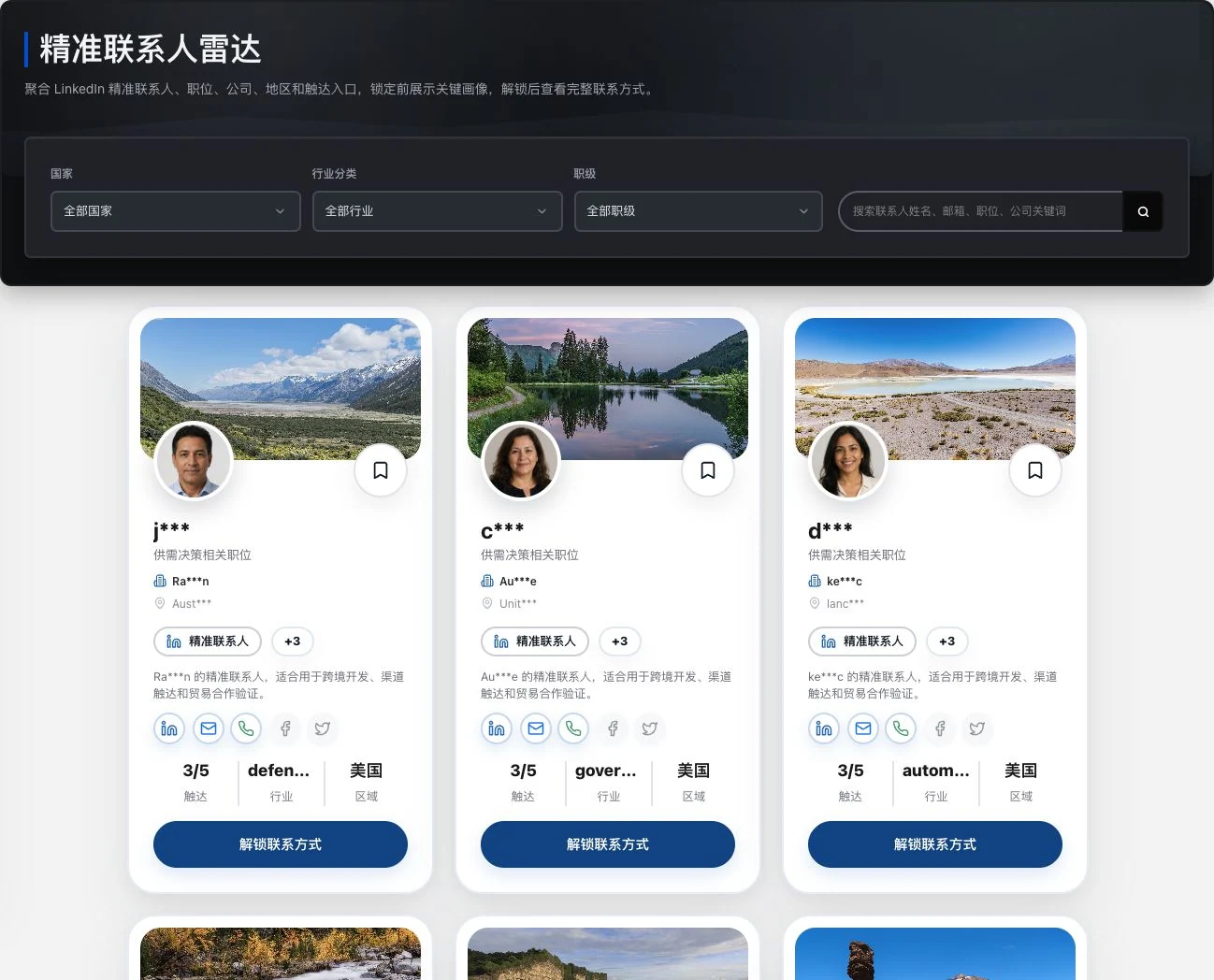
Real locked preview with identity and contact fields retaining original masking. No favorite or unlock action occurred. Images and role labels do not prove buying authority, contact intent, or LinkedIn partnership.
See this feature's highlights.
Save companies or contacts that need further checking.
See the actual stepsTo import your own leads, download the corresponding template and organize its fields first.
See the actual stepsReview imported records and continue managing your own list.
See how to checkKeep temporary discoveries so your next search has a starting point.
How the feature works. Actual results depend on information, permissions, and service requirements.
Complete steps
Save companies and contacts for later, or download a template, import your own lead list and manage records. Your own lead-list import and customer-record preview import are separate features.
Save companies or contacts that need further checking.
To import your own leads, download the corresponding template and organize its fields first.
Review imported records and continue managing your own list.
Explain the feature through real work
Suppose you find several companies worth researching today.
Hypothetical scenario · Feature explanation, not a customer case or completed AI resultWhen to use it
When you need to revisit newly found information or already have your own lead list, keep a starting point through favorites and the appropriate import tool.
companies or contacts you want to verify further.
your own lead list and the template provided by that import tool.
Understand the tool and human handling separately
Keep temporary discoveries so your next search has a starting point.
To import your own leads, download the corresponding template and organize its fields first.
This compares feature handling scopes. Scenarios explain the sequence, not measured efficiency or completed customer cases.
Connect the work from step to step
When reopening a record, complete the verification. If follow-up is needed, create accurate customer business records.
Return to Xunqi and CRM customer management for the complete workflowUnderstand before use
Lead-list import and customer-profile preview import use different tools. Information still needs checking.
Product facts and FAQsBack to the product feature directoryMore details in this product
Keep a clear scope and usage record for information access.
Explore this feature on its own