Choose a suitable scenario.
Choose the email scenario, language and tone, specify the product and audience, then edit the generated subject and body.
See the actual stepsOutreach templates and drafts
Start with editable wording and continue outreach using verified information.
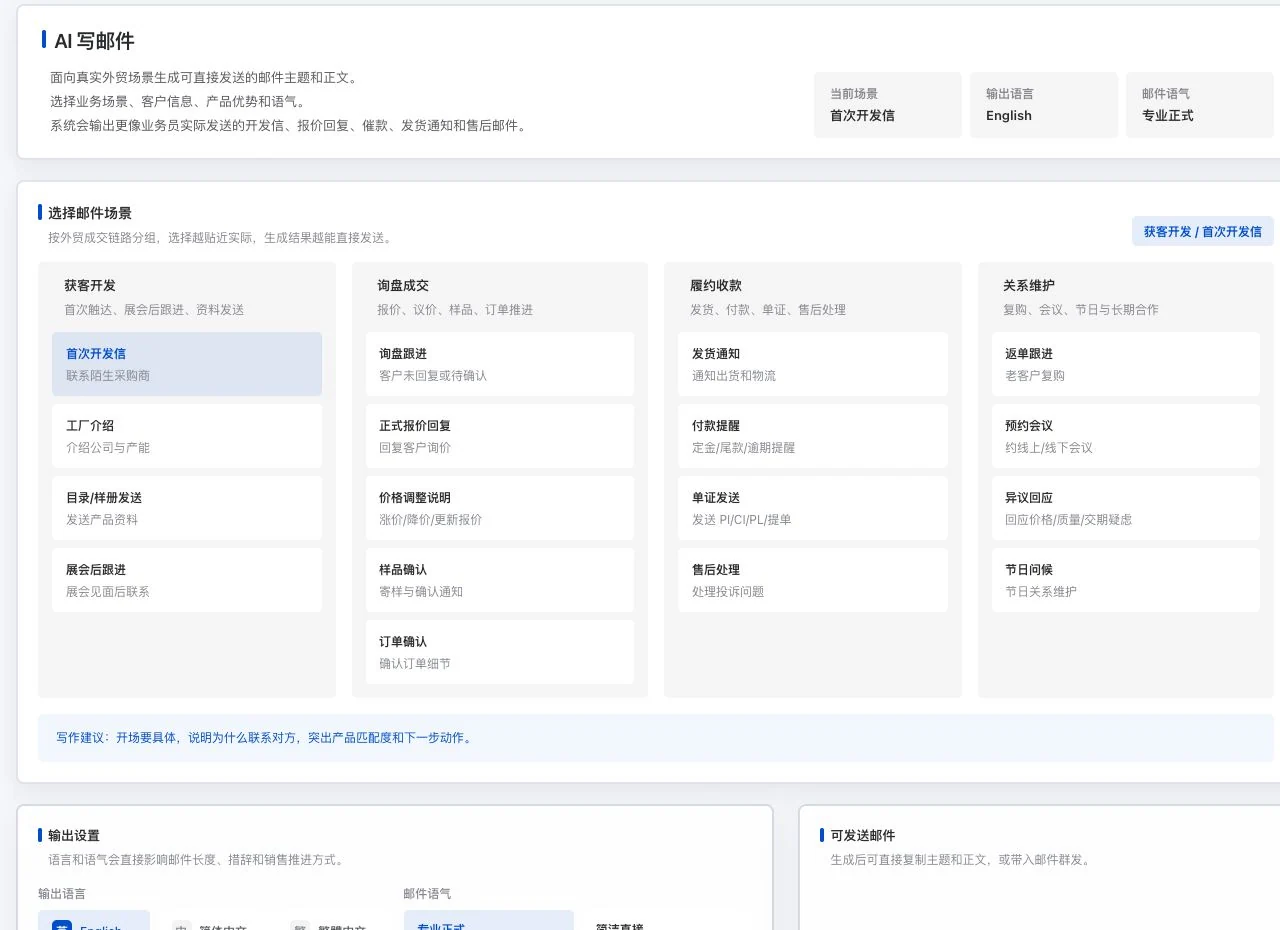
Original interface with initial outreach selected. No email has been generated. 17 is the current scenario count, not acceptance of model results or sending performance.
Start with editable wording and continue outreach using verified information.
Source: the writing interface also provides 18 languages and 10 tones. Generation needs model readiness; bringing in a draft does not send it automatically.
See this feature's highlights.
Choose the email scenario, language and tone, specify the product and audience, then edit the generated subject and body.
See the actual stepsCopy the content or bring the draft into the outreach workspace for further editing.
See the actual stepsAdd attachments or select existing templates as needed in outreach, then rerun preflight after checking recipient sources and the basis for contact.
See how to checkProduct evidence: genuine specifications, applications, audience and reference material.
See application scenariosWhen product facts are clear and you need an outreach email, choose the communication scenario and audience before editing the subject and body.
See application scenariosCopy the draft or bring it into the outreach workspace, add attachments and existing templates, then recheck after confirming the basis for contact. Importing the draft does not send it.
See application scenariosExplain the feature through real work
Suppose you introduce the same product to a distributor and a purchasing manager.
Hypothetical scenario · Feature explanation, not a customer case or completed AI resultWhen to use it
When product facts are clear and you need an outreach email, choose the communication scenario and audience before editing the subject and body.
genuine specifications, applications, audience and reference material.
the available settings among 17 scenarios, 18 languages and 10 tones.
Complete steps
Generate and edit outreach subjects and body text from product facts. Copy or transfer drafts into outreach, choose existing templates, add attachments and check recipient sources. Sender-identity templates differ from body templates; generating a draft does not send it.
Choose the email scenario, language and tone, specify the product and audience, then edit the generated subject and body.
Copy the content or bring the draft into the outreach workspace for further editing.
Add attachments or select existing templates as needed in outreach, then rerun preflight after checking recipient sources and the basis for contact.
Understand the tool and human handling separately
Start with editable wording and continue outreach using verified information.
Copy the content or bring the draft into the outreach workspace for further editing.
This compares feature handling scopes. Scenarios explain the sequence, not measured efficiency or completed customer cases.
Connect the work from step to step
Copy the draft or bring it into the outreach workspace, add attachments and existing templates, then recheck after confirming the basis for contact. Importing the draft does not send it.
Return to Email and WhatsApp · Linbo for the complete workflowUnderstand before use
The writing interface offers 17 scenarios, 18 languages and 10 tones. Generation requires actual model conditions; importing a draft does not send it. Attachments, existing templates and preflight are handled separately in outreach.
Product facts and FAQsBack to the product feature directoryMore details in this product
Read and prepare a reply around the same incoming email, keeping the customer context close at hand.
Explore this feature on its own