Receiving setup. Confirm connection.
Enter IMAP receiving and SMTP sending settings for your own email account.
See the actual stepsYour own receiving and sending accounts
Handle customer communication in your own authorized account.
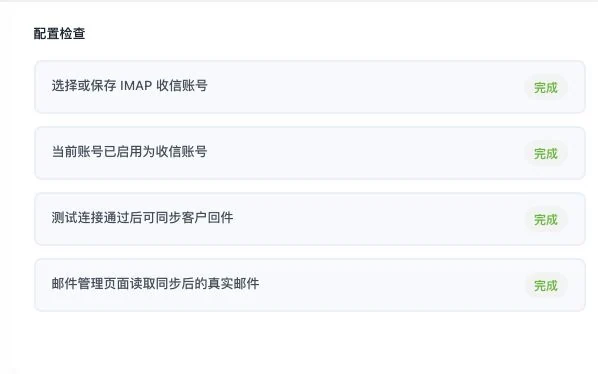
Original current-account check crop. No credentials are shown or changed. Statuses do not mean all providers connect, bulk sending is permitted, or specific emails were delivered.
See this feature's highlights.
Enter IMAP receiving and SMTP sending settings for your own email account.
See the actual stepsRun connection tests and check provider requirements and authorization scope.
See the actual stepsSwitch or delete accounts as needed, then review the corresponding emails.
See how to checkHandle customer communication in your own authorized account.
Source: IMAP receiving and SMTP sending configurations. A successful test does not authorize bulk sending.
When to use it
Before handling your own customer emails in the workspace, set up incoming and outgoing connections separately.
an email account you own and are authorized to use.
the provider's IMAP, SMTP and authorization method.
Complete steps
Configure, test, switch or delete your own email accounts. Receiving uses IMAP and sending uses SMTP. Actual provider permissions are required; a successful connection test does not authorize bulk sending.
Enter IMAP receiving and SMTP sending settings for your own email account.
Run connection tests and check provider requirements and authorization scope.
Switch or delete accounts as needed, then review the corresponding emails.
Explain the feature through real work
Suppose the account can receive email but its sending connection is not ready.
Hypothetical scenario · Feature explanation, not a customer case or completed AI resultUnderstand the tool and human handling separately
Handle customer communication in your own authorized account.
Run connection tests and check provider requirements and authorization scope.
This compares feature handling scopes. Scenarios explain the sequence, not measured efficiency or completed customer cases.
Connect the work from step to step
Read incoming messages or prepare outreach emails after the account is ready. Sending remains subject to provider rules and account permissions.
Return to Email and WhatsApp · Linbo for the complete workflowUnderstand before use
A successful connection test is not provider approval for bulk sending. Actual sending and receiving depend on the provider and account permissions.
Product facts and FAQsBack to the product feature directoryMore details in this product
Start with editable wording and continue outreach using verified information.
Explore this feature on its own